Computers & Accessories

9 Best Drawing Tablet of 2026: Find Reliable Options for Every Skill Level

Avoid unstable drivers, premature pen failures, and cramped surfaces — match the right tablet to your OS, budget, and art workflow.

Drawing tablets have become more affordable and feature-rich, but the leap in specs hasn't closed the reliability gap. A pen that stops responding or a screen that flickers mid-stroke can turn a creative session into a troubleshooting marathon.

The real choice isn‘t just between screen or no screen — it‘s about how much time you want to spend on driver updates versus actual drawing. A larger active area makes a huge difference, but only if the tablet stays connected and responsive across your OS.

This guide cuts through the spec sheet hype to focus on the tablets that deliver consistent performance, honest sizing, and stable drivers — whether you’re a beginner on a budget or a pro needing a portable studio.

1

Wacom Intuos Small

Top Pick

Wacom Intuos Small

Beginners

Our Score 9.2/10
Check Price

Worth Noting

  • Setting up the tablet requires driver installation and occasional updates, which some find non-intuitive.
  • The active area is compact
Screen?
No
Active Area
6 x 3.7 in
Color Gamut
Pressure Levels
4096

The Wacom Intuos Small stands apart for its driver stability across Windows, Mac, Chromebook, and Android — an area where many competitors fall short. The tablet connects via USB-A without Bluetooth headaches, and the battery-free electromagnetic resonance stylus eliminates charging or nib replacements. System updates rarely break functionality, so you can focus on drawing rather than troubleshooting.

The drawing experience closely mimics pen on paper, with a natural surface resistance and consistent pressure response across the entire active area. The 4096 pressure levels handle line tapering and shading accurately for most tasks, though the surface texture wears nibs slightly faster than glass alternatives. This feel suits controlled, wrist-based strokes better than broad arm movements.

This tablet is ideal for absolute beginners learning digital art, travelers needing a pocket-sized device, and users who prioritize a stable connection over a large canvas. The 6x3.7-inch active area works well for detailed, precise work but feels restrictive for sweeping gestures — a tradeoff that matters less for note-taking or photo editing. Bundled software like Corel Painter Essentials and Clip Studio Paint Pro gives newcomers a head start without extra cost.

Tip: Download the latest driver from Wacom's website before connecting the tablet to avoid initial setup hiccups.

Bottom line: For beginners and travelers who want a drawing tool with predictable performance and a smooth start, the Intuos Small sets a clear benchmark — just know the canvas size limits sweeping strokes.

2

GAOMON M10K

GAOMON M10K

Budget-conscious

Our Score 8.8/10
Check Price

Worth Noting

  • Compatibility with Chromebooks and Android devices is not guaranteed
  • Pen nibs can wear down relatively quickly, and some users report surface scratching over time
Screen?
No
Active Area
10 x 6.25 in
Color Gamut
Pressure Levels
8192

The GAOMON M10K delivers a 10x6.25 inch active area, 8192 pressure levels, a touch ring, and 10 programmable hot keys — all for under $60. Its battery-free stylus supports 60 degrees of tilt, matching the spec sheet of tablets costing twice as much. This is a pen tablet without a screen, so you'll rely on a computer monitor to see your strokes.

This tablet is best suited for Windows PC users who want a large canvas without spending a premium. Setup is straightforward with Windows drivers, but compatibility with Chromebooks and Android devices is hit or miss — some users experience connection problems, so it's not a safe choice for those platforms. Pen nibs can wear down faster with heavy use, and keeping replacements on hand is part of the ownership routine.

Compared to the top pick Wacom Intuos Small, the M10K offers more than triple the drawing area for less money. The tradeoff: Wacom's driver consistency across operating systems is more assured. For artists who work exclusively on Windows and prioritize canvas size over cross-platform reliability, the M10K is a compelling choice.

Tip: Keep a pack of replacement nibs on hand — the included ones may need swapping sooner than expected.

Bottom line: A spacious, budget-friendly pen tablet for Windows artists who value canvas size and don't need cross-platform compatibility.

3

XP-Pen Artist 13.3 Pro

XP-Pen Artist 13.3 Pro

Semi-pro artists

Our Score 9.0/10
Check Price

Worth Noting

  • Driver setup can require manual troubleshooting and downloading separate software.
  • Occasional screen flickering or signal loss has been noted in some units.
Screen?
Yes
Active Area
13.3 in diag
Color Gamut
123% sRGB
Pressure Levels
16384

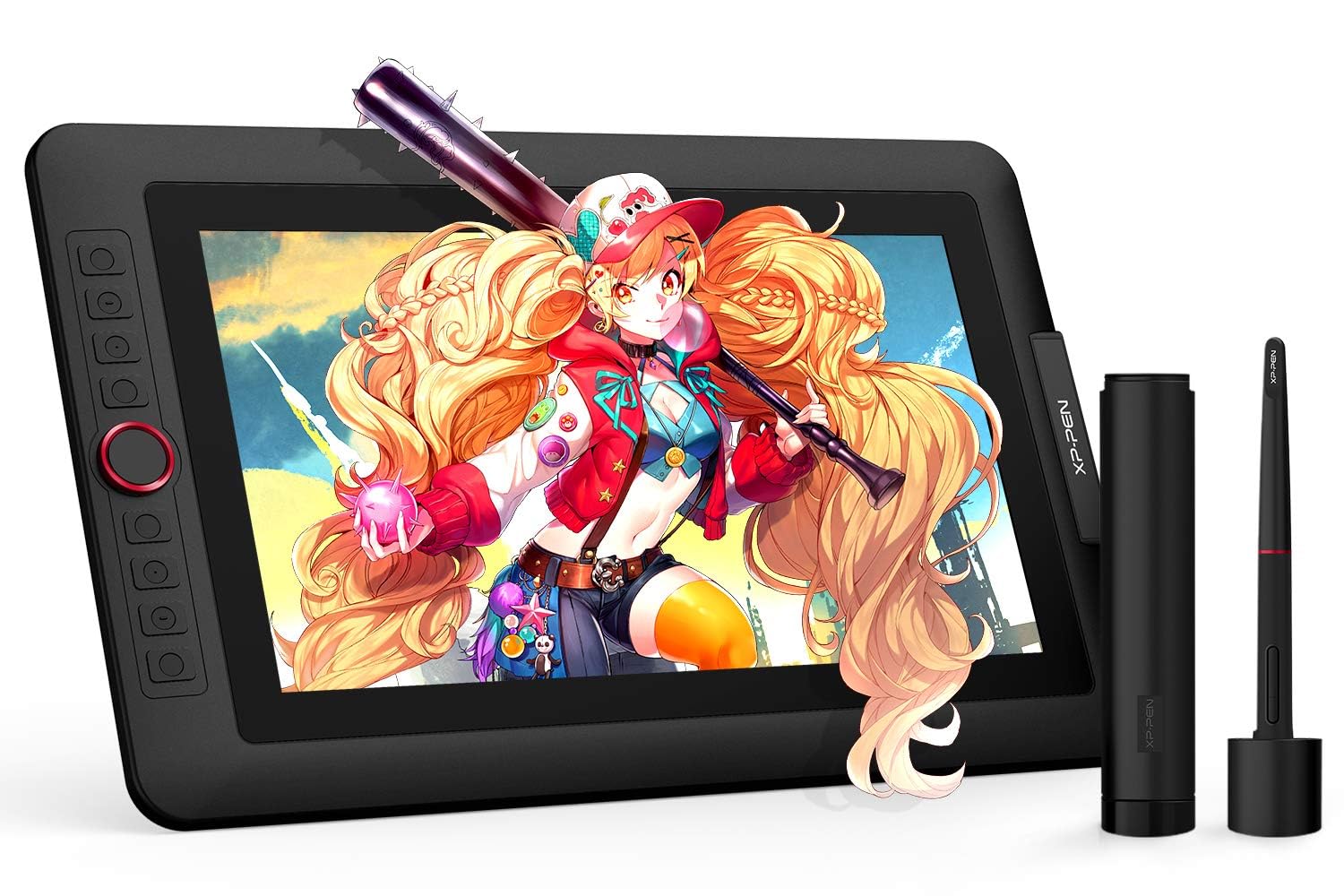
The XP-Pen Artist 13.3 Pro delivers a large, laminated drawing surface with wide color gamut and high pressure sensitivity at a mid-range price. This combination is hard to find in competing pen displays, especially those with similar screen quality. However, the initial setup requires downloading drivers and can involve some trial-and-error — a hurdle that the most plug-and-play options avoid.

This display fits budget-conscious artists, students, and hobbyists who are moving from a screenless pen tablet and need a sizable canvas without paying for a premium brand. The 13.3-inch full-laminated screen reduces parallax, making the pen feel closer to drawing on paper. At the same time, the driver installation process can be finicky, and a small number of units may show temporary screen flickering or signal loss — a tradeoff worth checking before committing.

When the setup is sorted, the drawing performance stands out: smooth linework, responsive pressure across 16384 levels, and color reproduction that covers 123% sRGB. Artists note a natural pen-on-screen feel with minimal surface glare. The build quality also feels sturdy, with solid accessories included.

Tip: Download and install the latest drivers from XP-Pen's official site before connecting the tablet to avoid common initial detection issues.

Bottom line: For artists who can handle a slightly fiddly setup and want a capable pen display without the premium price, the Artist 13.3 Pro delivers strong drawing performance and color accuracy that rivals more expensive options.

4

XP-Pen Magic Drawing Pad

XP-Pen Magic Drawing Pad

Standalone artists

Our Score 9.0/10
Check Price

Worth Noting

  • Battery drains faster than expected when running resource-heavy drawing apps.
  • Pen tracking may lag or stutter with complex, multi-layer files.
Screen?
Yes
Active Area
12.2 in diag
Color Gamut
Pressure Levels
16384

The XP-Pen Magic Drawing Pad runs Android 14 on a 12.2-inch anti-glare etched glass display that mimics the drag of real paper. The X3 Pro battery-free stylus offers 16K pressure levels, giving strokes a natural taper without the need for a computer or charger. This makes it a self-contained creative tool for on-the-go sketching and painting.

Under heavy file loads or multi-layer compositions, the tablet can stutter or lose pen tracking momentarily. Battery life also drops noticeably when running demanding apps — a full day of intense drawing may require a midday charge. These are situational boundaries rather than dealbreakers, but they mean the Magic Pad isn’t a workstation replacement.

Best suited for digital artists who want a portable, computer-free setup for sketching, illustration, or note-taking. Traveling creators and students who rely on Android apps will appreciate the expandable storage and lightweight build. Those who need the full professional app ecosystem of iPadOS or desktop-grade performance for 3D work should look at the premium Wacom standalone instead.

Tip: Plug in during long studio sessions — the battery handles casual use well but depletes fast with intensive apps.

Bottom line: The XP-Pen Magic Drawing Pad is the most cost-effective standalone drawing tablet available, with a screen feel that rivals far pricier options — just know that heavy workloads can push its Android hardware to the limit.

5

XP-Pen Artist Pro 16 Gen2

XP-Pen Artist Pro 16 Gen2

Large-screen pros

Our Score 8.8/10
Check Price

Worth Noting

  • Driver conflicts with GIMP and older Photoshop versions may prevent proper pressure sensitivity.
  • Occasional 'no signal' errors or pen disconnection can interrupt workflow, especially after system sleep.
Screen?
Yes
Active Area
16 in diag
Color Gamut
99% sRGB
Pressure Levels
16384

The XP-Pen Artist Pro 16 Gen2 pairs a sharp 16-inch 2.5K QHD display with 99% sRGB coverage and 16384 pressure levels, bundled with a Mini Keydial remote for quick shortcuts. The build quality feels premium, with a sturdy stand that adjusts to multiple angles. This hardware directly competes with Wacom's Cintiq 16 at a significantly lower price point.

The display delivers vivid colors and fine detail, making it suitable for illustration and design. In daily use, the X3 Pro stylus feels responsive with smooth tracking. For artists working in supported software like Clip Studio Paint or Photoshop CC, the high resolution and responsive pen allow for precise linework and shading. However, some setups experience occasional 'no signal' errors when the computer wakes from sleep or when switching inputs. Pen disconnection has also been noted, requiring a few seconds to re-establish. Driver compatibility can be spotty with older software like GIMP and Photoshop CS6.

This pen display is best for enthusiasts who want a large, high-resolution screen without paying Wacom prices and are comfortable troubleshooting occasional driver quirks. It suits artists using supported software on Windows. Mac users or professionals needing guaranteed uptime may find the signal issues and driver conflicts too disruptive. If you're willing to invest time in driver setup, the payoff is a display that rivals $1,000+ alternatives.

Tip: To reduce no-signal errors, keep the display connected to a dedicated USB port and disable USB selective suspend in power settings.

Bottom line: If you need a large, high-resolution pen display and can handle occasional driver quirks, this offers Wacom-level hardware at a lower cost.

6

HUION Inspiroy H1060P

HUION Inspiroy H1060P

Budget beginners

Our Score 8.8/10
Check Price

Worth Noting

  • Pen responsiveness can be inconsistent across different computer setups.
  • Mac driver support is limited; functionality is not guaranteed.
Screen?
No
Active Area
10 x 6.25 in
Color Gamut
Pressure Levels
8192

The HUION Inspiroy H1060P offers a large drawing surface and responsive stylus with tilt support at a price that undercuts most competitors. The 12 customizable hot keys speed up common actions. However, the pen can be unresponsive on some system configurations, and driver setup may require a few attempts to get right.

This tablet is best suited for Windows-based beginners who want a generous active area without spending much, and who have some patience for software adjustments. Mac users should expect compatibility issues that may not be resolvable, making this a poor choice for that platform.

Bottom line: Best for Windows users on a tight budget who need a large drawing area and are comfortable troubleshooting driver issues.

7

HUION Kamvas 13 Gen 3

HUION Kamvas 13 Gen 3

Enthusiasts

Our Score 9.0/10
Check Price

Worth Noting

  • Some units may exhibit no-signal errors or pen unresponsiveness
  • Button responsiveness can be inconsistent, with occasional stuck or unresponsive keys
Screen?
Yes
Active Area
13.3 in diag
Color Gamut
99% sRGB
Pressure Levels
16384

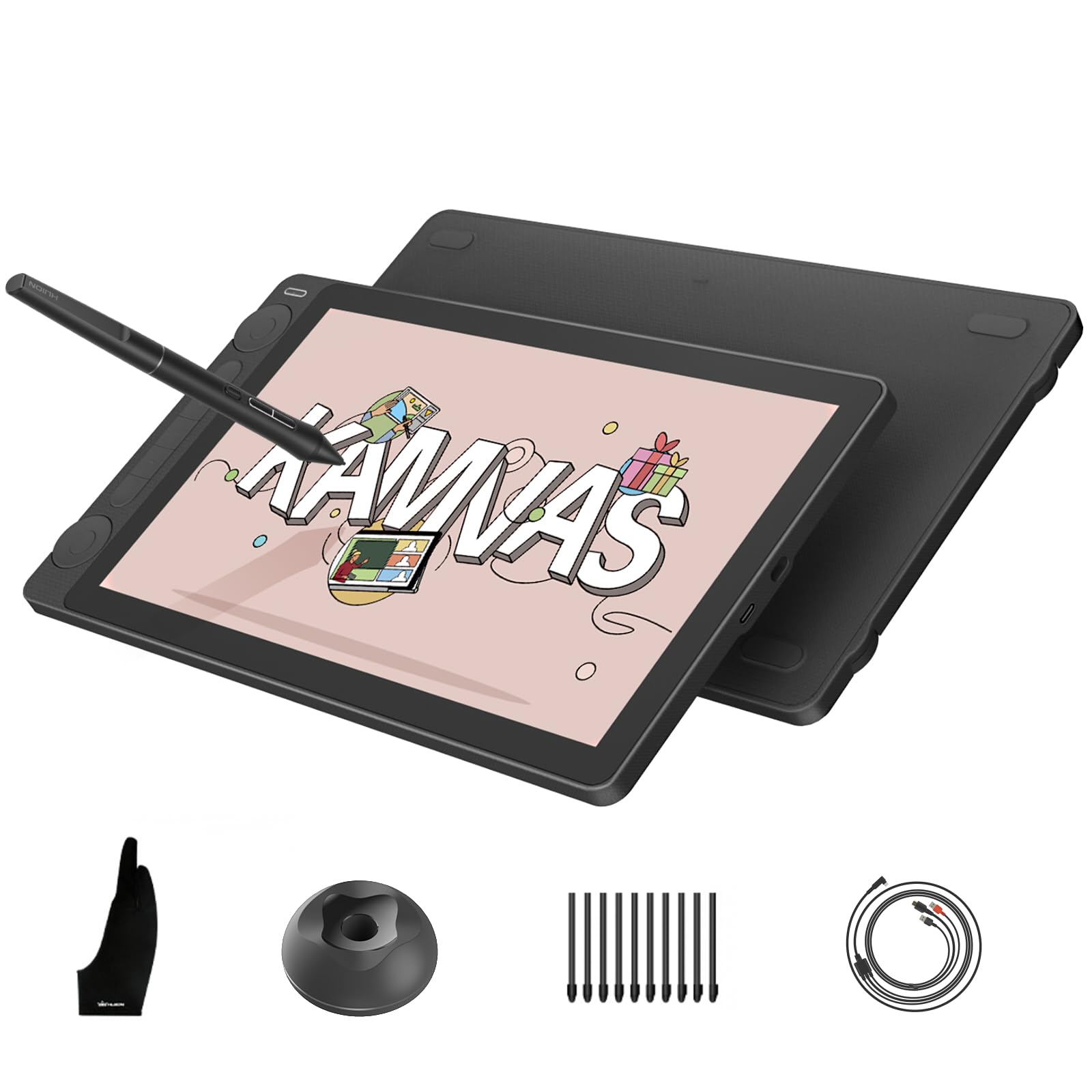
The HUION Kamvas 13 Gen 3 packs impressive color accuracy and 16384 pressure levels into a $199 package, with a full-laminated 13.3-inch screen and dual dials for workflow shortcuts. Build quality feels premium, and the display is factory-calibrated to ΔE<1.5. However, some units may arrive with no-signal errors or pen unresponsiveness, and the button responsiveness can be inconsistent in certain cases. This makes it a fit for artists who prioritize color and pressure specs over guaranteed uptime, and who are comfortable with potential driver or hardware troubleshooting.

Bottom line: Best for budget-conscious artists who value color accuracy and high pressure sensitivity and are willing to accept potential initial setup variance.

8

GAOMON PD1161

GAOMON PD1161

Absolute beginners

Our Score 8.6/10
Check Price

Worth Noting

  • Complete inoperability can occur after brief use
  • Display resolution appears noticeably lower than competitors
Screen?
Yes
Active Area
11.6 in diag
Color Gamut
72% NTSC
Pressure Levels
8192

The GAOMON PD1161 offers an 11.6-inch drawing screen with a battery-free stylus at a price that undercuts most competitors. However, the display resolution is visibly lower than alternatives, and some units may develop problems within months of use. The screen can appear blurry, reminiscent of lower-resolution displays, and occasional unit defects may lead to complete inoperability after short use. These compromises place it a step below more consistent options like the rival 13-inch pen display for anyone prioritizing long-term reliability.

Tip: Purchase from a retailer with a generous return policy to mitigate potential early defects.

Bottom line: If your budget is extremely tight and you can accept the possibility of early replacement, the GAOMON PD1161 provides a functional drawing screen for basic practice and exploration.

9

TCL NXTPAPER 11 Plus

TCL NXTPAPER 11 Plus

Note-takers

Our Score 8.8/10
Check Price

Worth Noting

  • Performance can slow down when running multiple apps or heavier drawing software.
  • Pen sensitivity at 4096 levels may feel insufficient for fine line work or detailed shading.
Screen?
Yes
Active Area
11.5 in diag
Color Gamut
Pressure Levels
4096

The TCL NXTPAPER 11 Plus delivers a comfortable paper-like reading and drawing experience with a 120Hz matte display and all-day battery. However, the stylus offers only 4096 pressure levels, which lacks the precision required for detailed artwork, and the processor may lag under demanding creative apps. This makes it a capable note-taking tablet and a fine choice for light sketching, but not a replacement for a dedicated drawing tablet.

Bottom line: This tablet works well for note-taking, reading, and casual doodling, but serious digital artists should look to the standalone drawing tablets reviewed above.

How to Choose

Active Drawing Area

A larger active area lets you make sweeping strokes and reduces the need to zoom in constantly. Entry-level tablets often cramp you into a 6x3.7-inch space, which works for precise line work but forces you to reposition the pen frequently for broader sketches.

For most beginners, a 10x6-inch surface hits the sweet spot: comfortable without requiring a giant desk. The trade-off is that large tablets can feel unwieldy on a cluttered workspace, and the pen tip may drift if the active area is not well calibrated to the screen mapping.

Pressure Sensitivity Levels

Pressure sensitivity determines how subtly the pen responds to light and heavy strokes. 4096 levels is perfectly adequate for all but the most nuanced watercolor-style pressure curves. The jump to 8192 or 16384 is real but incremental — most artists never push beyond 2048 distinct steps.

The real differentiator is the pen’s initial activation force: a low-force pen feels more natural, while a high-force pen may require deliberate pressing. Budget tablets often skimp on this, leading to skipped faint lines. Test the feel in-store or read consistent feedback from users with similar drawing styles.

Screen vs. No Screen

Pen tablets (no screen) are lighter, cheaper, and more reliable because they have fewer electronic components. The learning curve is real — you must coordinate eyes on the monitor while hand moves on the tablet — but most users adapt within two weeks.

Pen displays offer direct eye-hand coordination, which feels natural and speeds up detailed work. The cost is higher failure risk: the screen cable, backlight, and digitizer can all develop issues. If you only draw a few hours per week, a pen tablet gives you more value and peace of mind.

Color Accuracy and Gamut

For pen displays, color accuracy is critical if you illustrate for print or client work. Look for sRGB coverage above 95% and a delta-E under 2. Wider gamut (Adobe RGB or DCI-P3) matters for photo editors, not so much for web-focused digital art.

The hidden trade-off: factory calibration drifts over time. Some budget pen displays advertise high gamut numbers but ship with cold color temperature or visible banding. Mid-range models from XP-Pen and HUION often include a calibration report, but Wacom’s consistency out of the box tends to be tighter.

OS Compatibility and Drivers

Driver stability is the silent killer of drawing tablet happiness. A tablet can have perfect specs but become unusable after a Windows update or when switching to a Mac. Wacom has the best track record of maintained drivers across OS versions, while Chinese brands often lag or drop support for older models.

Check recent forum posts for your specific OS version. Chromebook and Android compatibility is especially hit-or-miss. If you dual-boot or plan to use the tablet with multiple computers, prioritize a brand with a reputation for driver updates rather than raw pressure levels.

Frequently Asked Questions