Computers & Accessories

12 Best Laptop Docking Station of 2026: Stable Long-Term Performance

Find a docking station that maintains stable connections and doesn't fail after months of use, with guidance on compatibility and real-world performance.

Finding a laptop docking station that works reliably past the first few months can feel like a gamble. Many hubs advertise impressive port counts and high resolutions, but real-world reports of flickering screens, random disconnects, and charging failures pile up even for major brands.

The core issue isn't about spending more — budget models and premium docks alike show similar failure patterns. What matters is matching the dock's capabilities to your specific laptop's port protocol and your display demands.

This guide cuts through the marketing to identify the docks that offer the best trade-off between features and long-term stability, helping you avoid the common pitfalls that waste time and money.

1

MOKiN 14-in-1 Triple

Top Pick
MOKiN 14-in-1 Triple

Windows triple monitors

Our Score 8.8/10
Check Price

Worth Noting

  • Without a Thunderbolt 3/4 or full-featured USB-C port, the hub's video outputs will not work.
  • Charging capability may fall short for laptops with high power draw under load.
Ethernet
Gigabit Ethernet
Data Speed
5Gbps USB-C/A
Compatibility
TB3/4, Windows
Video Outputs
2 HDMI + 2 DP, triple

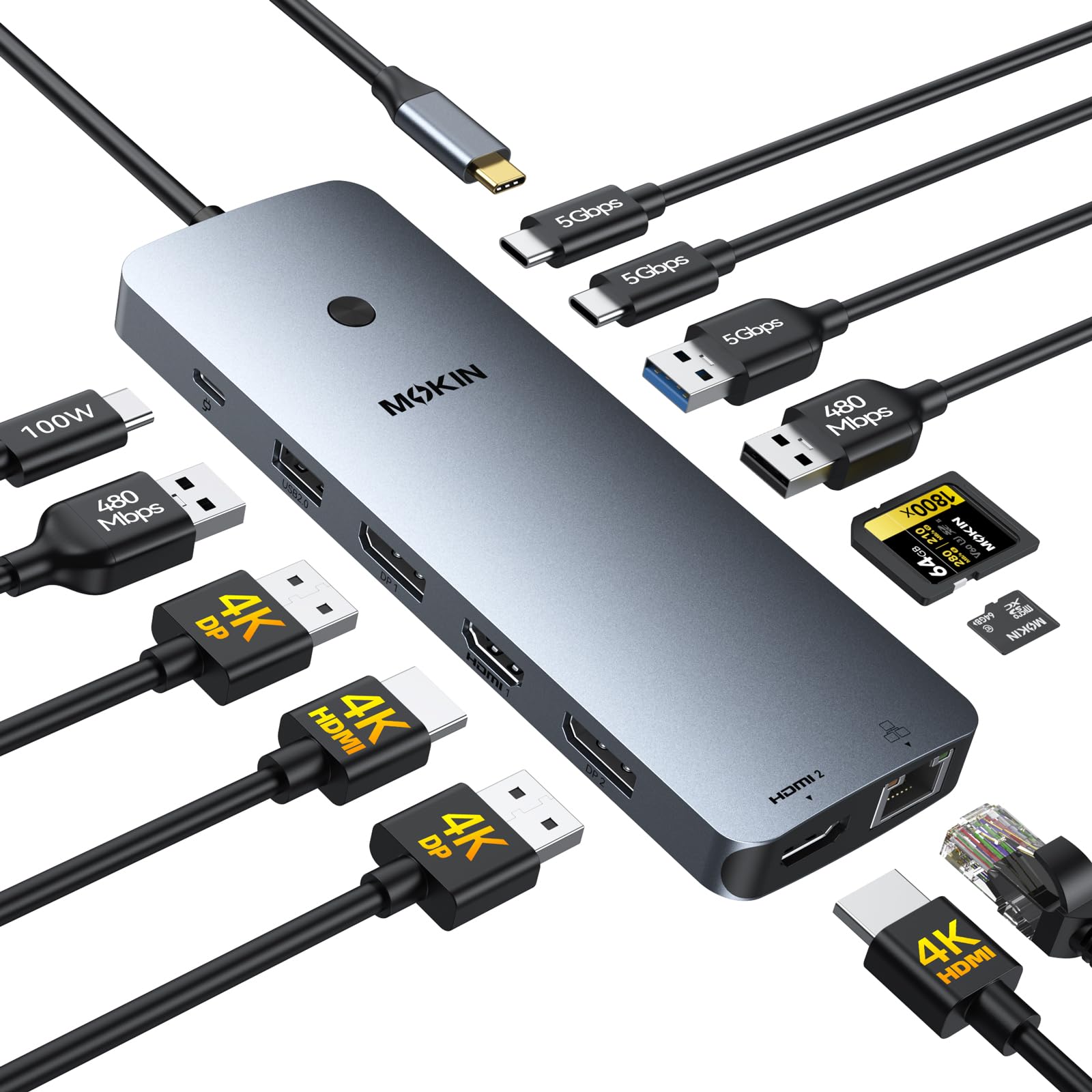
The MOKiN packs 2 HDMI and 2 DisplayPort ports into a compact shell, letting you connect three external monitors from a single Thunderbolt cable. For Windows laptops with Thunderbolt 3 or 4, this means extended desktops at resolutions up to 4K without relying on finicky DisplayLink drivers. At this price point, no other hub offers this many video output options in a portable chassis.

In practice, display stability holds up during mixed-use workflows — web browsing, document editing, even light video playback across three screens. The hub also includes USB-A and USB-C at 5Gbps, Ethernet, and SD/microSD card slots, covering most peripheral needs in one cable. Charging via the 100W PD input works as intended for many laptops, though power delivery can vary depending on the laptop's own power demands and the charger used.

This hub is built for Windows users with a Thunderbolt 3 or 4 port who need a cost-effective way to run three external monitors. If your laptop lacks a full-featured USB-C or Thunderbolt port (common on older models or budget machines), the video outputs won't activate. Mac users should note that macOS only supports mirrored displays across all screens, not extended desktops, even with Thunderbolt.

Tip: For consistent charging, pair the hub with a 100W USB-C charger (sold separately) and avoid connecting high-power USB devices simultaneously.

Bottom line: For Windows laptop owners with Thunderbolt 3 or 4 who want a genuinely affordable way to drive three external monitors, the MOKiN delivers where more expensive hubs stumble on port variety or require extra software.
2

Plugable UD-ULTCDL

Plugable UD-ULTCDL

Mac triple monitors

Our Score 8.8/10
Check Price

Worth Noting

  • Premium price compared to docks that don't need DisplayLink
  • DisplayLink driver can cause glitches and black screens on streaming content
Ethernet
Gigabit Ethernet
Data Speed
5Gbps USB-A
Compatibility
Windows, Mac (DisplayLink)
Video Outputs
3 HDMI, up to 4K@30Hz

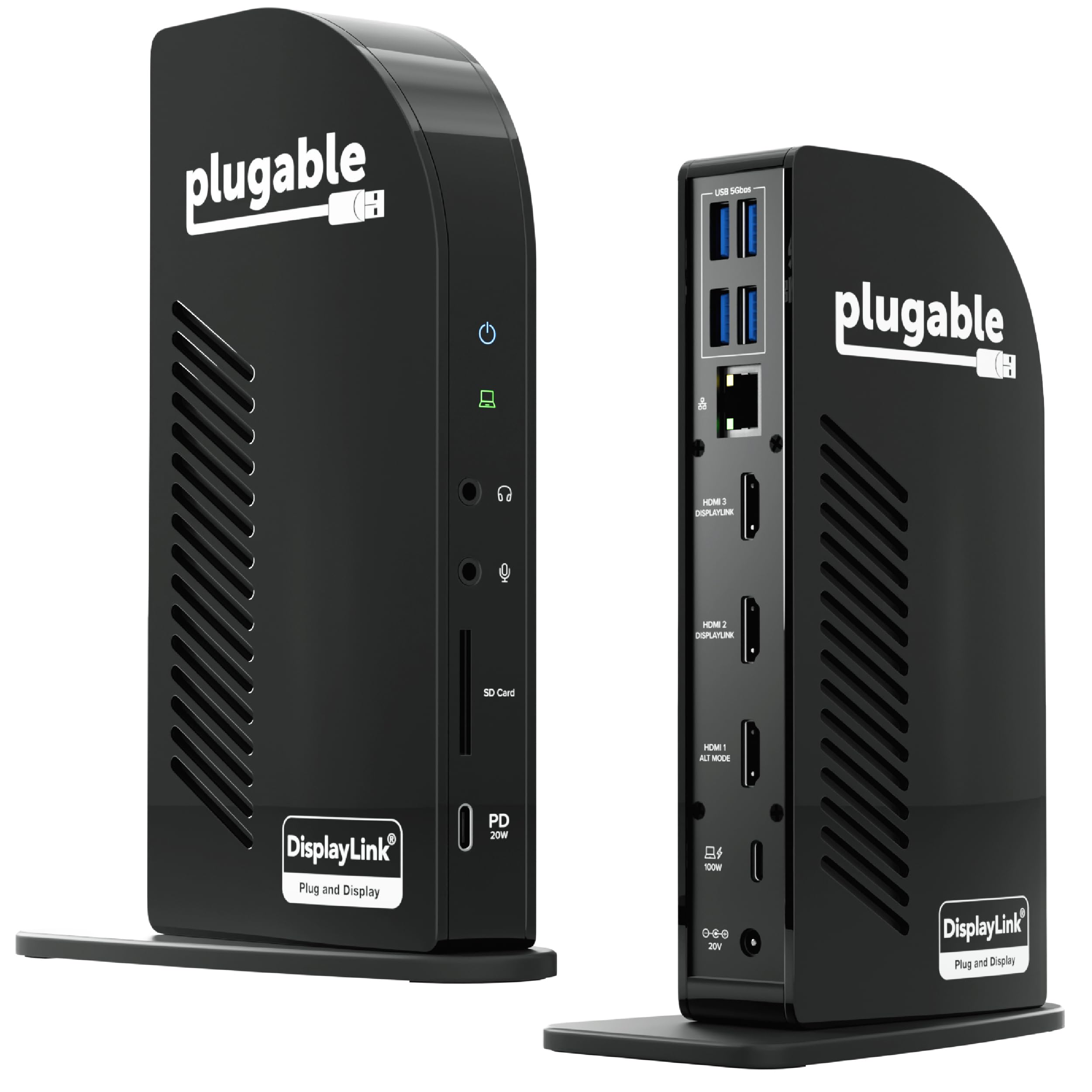
The Plugable UD-ULTCDL stands out as the only docking station we've tested that drives three extended displays on M-series MacBooks while keeping the laptop charged at 100W. This is a specialized tool for Mac users who need multi-monitor productivity, not a general-purpose Windows dock — cheaper alternatives like the Plugable UD-3900 handle dual displays without the DisplayLink overhead.

This dock is built for MacBook owners who require three separate external monitors and can live with the DisplayLink driver as the video engine. The setup process is straightforward for most users, but that driver comes with two boundaries: streaming services like Netflix and Hulu will show black screens on the DisplayLink outputs, and those who prefer not to install third-party drivers should look elsewhere. Windows and ChromeOS machines work too, but the triple-monitor benefit is most pronounced on Apple silicon.

Over time, the DisplayLink driver can introduce occasional glitches — screen flicker or temporary disconnects — and a small number of units have shown reduced functionality after months of heavy use. The premium price also gives pause when compared to non-DisplayLink docks that offer similar port counts. Still, for the specific use case of running three extended monitors from a MacBook, no other product in this roundup delivers that capability with this level of power delivery.

Tip: Keep the DisplayLink driver updated to minimize glitches, and expect black screens when streaming DRM-protected content like Netflix.

Bottom line: A must-have for Mac users who need three extended displays, but the DisplayLink dependency and occasional reliability issues keep it from being a universal recommendation.

3

Anker Nano 13-in-1 Detachable

Anker Nano 13-in-1 Detachable

Travel & desk

Our Score 8.8/10
Check Price

Worth Noting

  • Mac multi-monitor is mirror-only, not extended
  • Occasional display flickering or disconnects may occur depending on laptop configuration.
Ethernet
Gigabit Ethernet
Data Speed
10Gbps USB-C
Compatibility
USB-C/TB, Windows, Mac mirror
Video Outputs
2 HDMI + 1 DP, triple

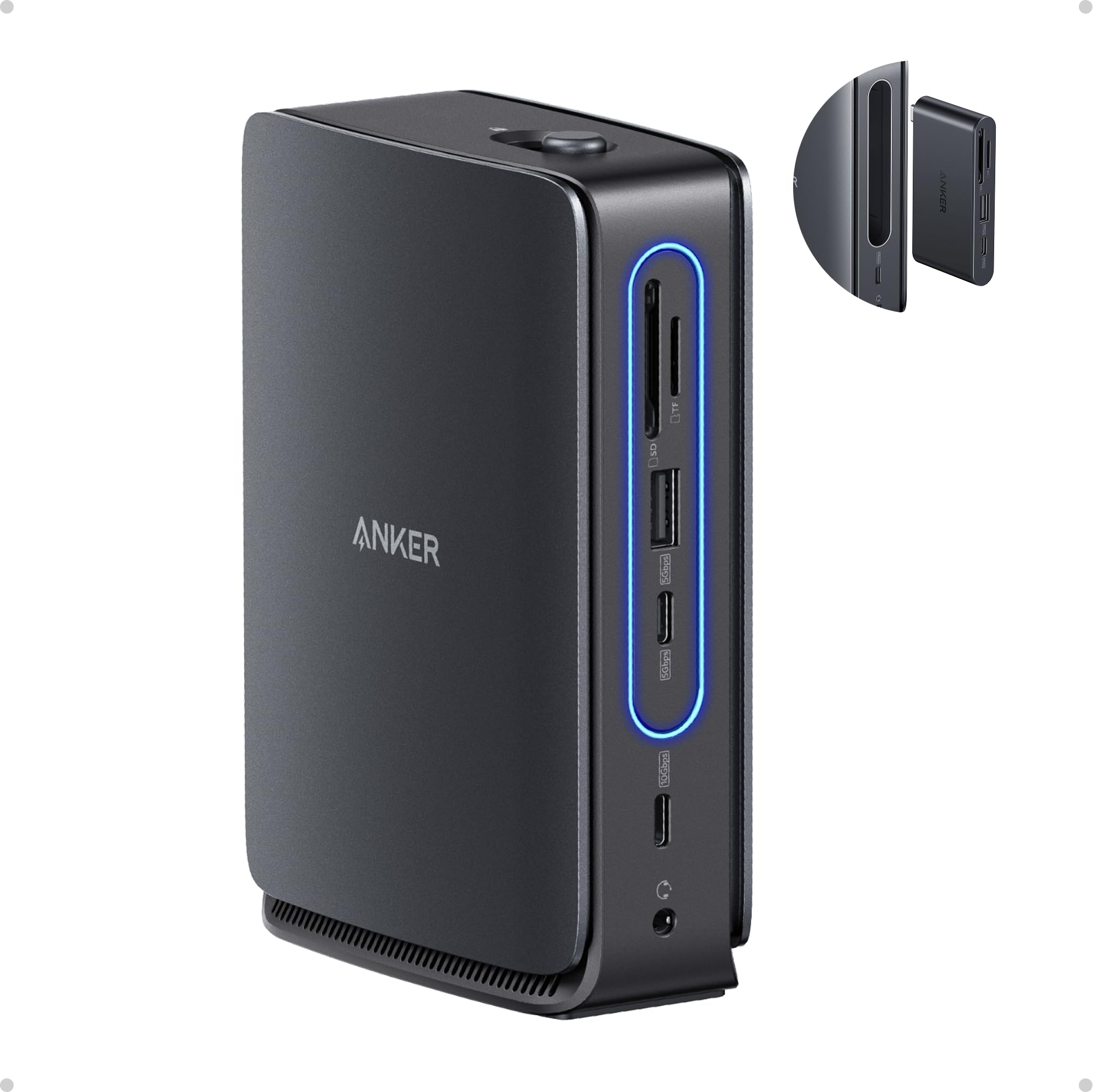
The Anker Nano 13-in-1 splits into a full-sized docking station and a detachable 6-in-1 hub that fits in a pocket — a practical solution for anyone who needs a permanent desk setup but also wants a portable hub for travel. The base offers triple-monitor output via two HDMI and one DisplayPort, plus a 10Gbps USB-C data port, three USB-A ports, Ethernet, and SD/TF card slots. An included 140W adapter delivers up to 100W of charging to the laptop.

Windows users with a USB-C or Thunderbolt 3/4/5 laptop will find broad compatibility and stable multi-monitor performance. Mac users, however, are limited to mirroring across external displays — this dock is not a solution for extended desktop setups on macOS. On the positive side, the detachable module alone provides HDMI, USB-A, USB-C, and SD card access, which covers most on-the-go needs.

The aluminum construction feels substantial, and the magnetic connection between the two parts holds securely. A small number of owners have noted occasional flickering or disconnection, often traced to specific laptop power settings or BIOS configurations; updating drivers typically addresses this. At a mid-range price, the flexibility of having both a full dock and a travel hub in one package stands out from simpler static hubs.

Tip: For best stability, keep your laptop's firmware and chipset drivers up to date, especially on Dell or Lenovo systems.

Bottom line: If your work rotates between a desk and mobile setups, the detachable design is a genuine time-saver — just know that Mac users will not get extended multi-monitor support.

4

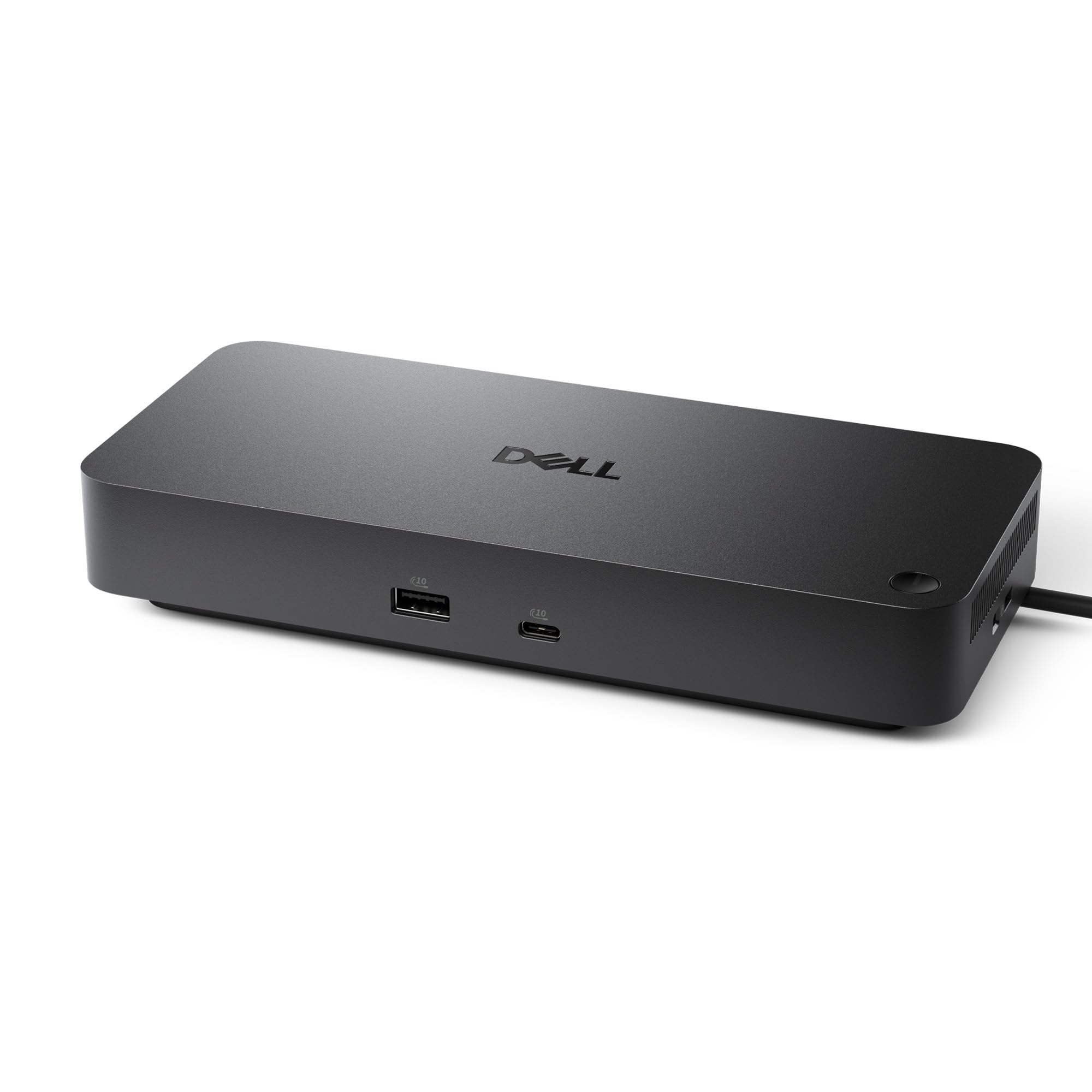
Dell Pro Dock WD25

Dell Pro Dock WD25

Enterprise Dell laptops

Our Score 9.2/10
Check Price

Worth Noting

  • Single HDMI port forces use of DP-to-HDMI adapters for dual HDMI setups
  • Premium pricing with fewer ports than other docks at the same cost
Ethernet
Gigabit Ethernet
Data Speed
10Gbps
Compatibility
Windows, Chrome, Linux, Dell
Video Outputs
1 HDMI, 1 DP, MST

The Dell Pro Dock WD25 delivers consistent multi-monitor operation with Dell laptops and full compatibility with Ubuntu and RHEL, a combination that few docks in this price range match. Plug-and-play setup means no driver hunting, and the 100W power delivery keeps a laptop charged through a single USB-C connection.

This dock suits IT departments standardizing on Dell hardware or Linux users who need predictable multi-monitor behavior without DisplayLink complications. The tradeoff is a single HDMI port — anyone running two HDMI monitors will need a DisplayPort-to-HDMI adapter. Port count is lower than similarly priced competitors, which matters less in managed environments where USB-A peripherals and Ethernet are the norm.

Build quality matches the professional positioning: a sturdy metal frame and sustainable materials give a feel that holds up under daily desk use. The 3-year warranty backs that construction, reducing risk for organizations that buy in volume.

Tip: A single DisplayPort-to-HDMI adapter gives you a second HDMI output if needed.

Bottom line: The right choice when stability, Linux support, and warranty length matter more than raw port count — especially for Dell-centric IT fleets.

5

UGREEN Revodok Pro 210

UGREEN Revodok Pro 210

Budget dual monitor

Our Score 9.0/10
Check Price

Worth Noting

  • Display output can be inconsistent
  • Long-term durability is uncertain; occasional units may stop working after a few months
Ethernet
Gigabit Ethernet
Data Speed
5Gbps
Compatibility
Windows, Mac mirror
Video Outputs
2 HDMI, dual 4K@60Hz

The UGREEN Revodok Pro 210 delivers dual HDMI 4K@60Hz output and 100W pass-through charging at a price that undercuts most competitors by a significant margin. The aluminum body feels denser than its price suggests, and the port selection — two USB-A 2.0, one USB-A 3.0, one USB-C data, Ethernet, and SD/TF slots — covers the essentials without bloat. For Windows laptops with a full-featured USB-C port, this is plug-and-play: extended displays, wired networking, and laptop power all through one cable.

This dock is best suited for budget-conscious buyers who need dual 4K@60Hz for productivity but aren't relying on it for mission-critical work. The tradeoff is that a subset of units can stop working within a few months, and some users report blurry output or visual artifacts on screen. Heat buildup under sustained load has also been noted. For home offices or secondary setups where a dock failure means a minor inconvenience, the cost savings are worthwhile. Mac users should note that dual extended displays are not supported; mirroring is the only option on macOS.

Tip: Using a powered USB hub for high-draw peripherals can reduce heat buildup and extend the dock's lifespan.

Bottom line: If you need dual 4K@60Hz on a tight budget and can tolerate the possibility of early failure, the UGREEN delivers unmatched value for Windows users. For those who need guaranteed long-term stability, the MOKiN (top pick) is worth the extra cost.

6

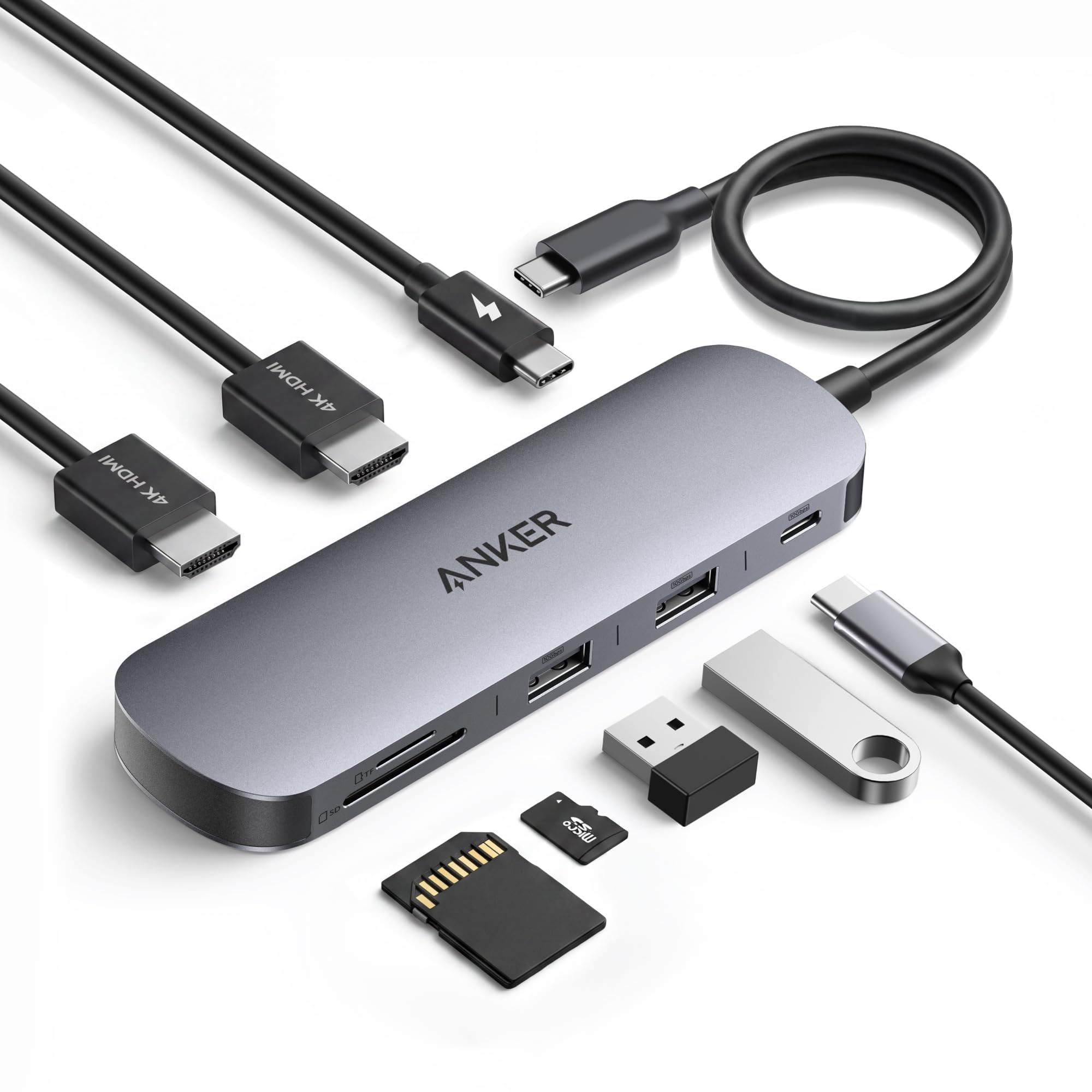
Anker 8-in-1 USB-C Hub

Anker 8-in-1 USB-C Hub

Windows dual monitor

Our Score 8.6/10
Check Price

Worth Noting

  • Dual 4K output is limited to 30Hz; macOS users get only mirroring.
  • Some units may lose display connection after extended use.
Ethernet
1 Gbps Ethernet
Data Speed
5Gbps USB-A
Compatibility
USB-C, Windows, Chrome, Mac mirror
Video Outputs
2 HDMI, 4K@30Hz dual

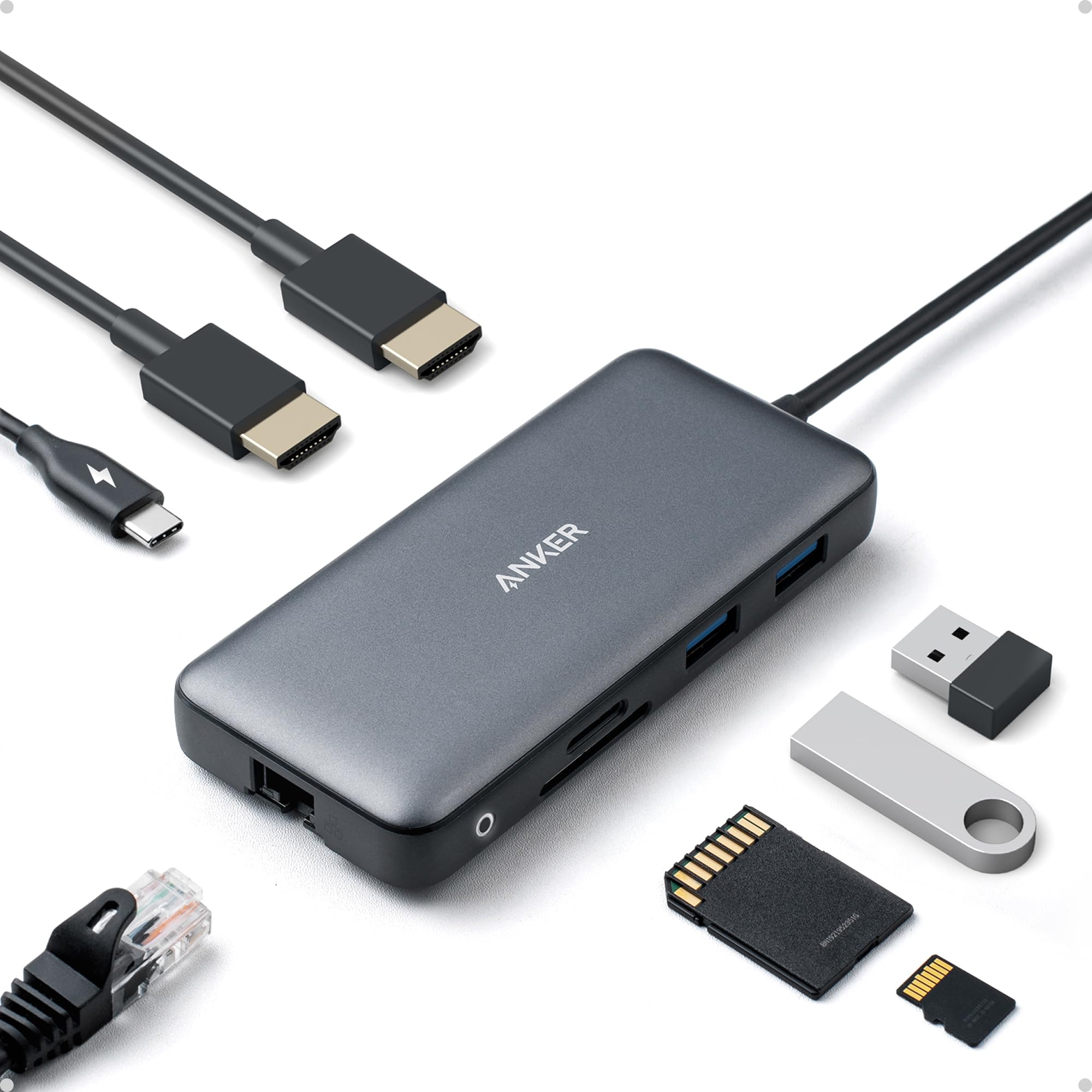
This hub's compact design and driver-free setup make it a straightforward choice for adding dual 1080p or 1440p monitors to a Windows laptop. The build quality meets Anker's typical standard, and the included Ethernet and SD card slots cover home office needs. However, dual 4K output is limited to 30Hz, and some units may develop intermittent display connections over time. For users who need triple monitors or higher refresh rates, the MOKiN offers more flexibility at a similar price.

Tip: If your laptop shows a weak charging warning, a separate power adapter may be needed for demanding tasks.

Bottom line: Best for budget-conscious Windows users who need basic dual-monitor expansion without fussing over high-resolution or triple-display demands.

7

Acer 11-in-1 Triple DP

Acer 11-in-1 Triple DP

Budget triple monitor

Our Score 8.2/10
Check Price

Worth Noting

  • Long-term durability can vary; some units may stop working within a few months.
Ethernet
1 Gbps Ethernet
Data Speed
10Gbps USB-C
Compatibility
Windows, Mac mirror, DP Alt
Video Outputs
2 HDMI, 1 DP, triple

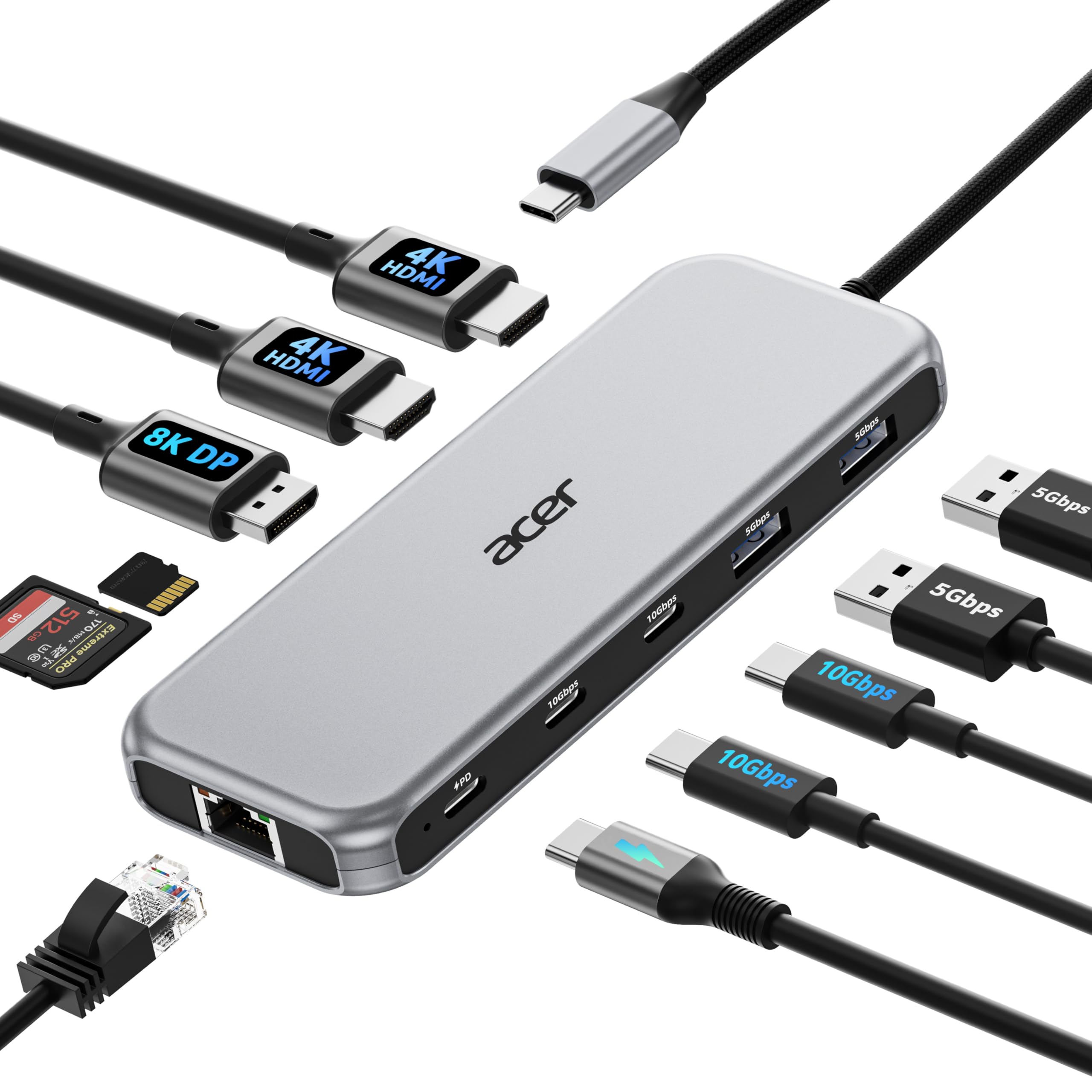
The Acer 11-in-1 docking station delivers triple-monitor output (two HDMI at 4K 60Hz, one DisplayPort at 8K 30Hz) and a full port array including USB-C, USB-A, Ethernet, and SD card slots — all at an entry-level price. However, the low cost comes with a tradeoff in build consistency; some units can stop functioning after several months of use. This dock suits home office setups where a sudden replacement is acceptable, but it's not suited for critical daily workflows where downtime matters.

Bottom line: Best for home office users on a tight budget who can accept occasional unit variability and prioritize triple-monitor support over long-term certainty.

8

Selore 14-in-1 USB-C Hub

Selore 14-in-1 USB-C Hub

Extreme budget many ports

Our Score 8.8/10
Check Price

Worth Noting

  • HDMI and USB connections may drop intermittently after extended use, disrupting tasks needing stable links
  • The hub does not fit snugly when a laptop case is attached, requiring case removal for proper connection
Ethernet
Gigabit Ethernet
Data Speed
10Gbps select
Compatibility
Windows, Mac mirror, TB3/4
Video Outputs
2 HDMI, VGA, triple

The Selore 14-in-1 USB-C Hub provides a remarkable 14 ports at a budget price, making it a compelling option for users who need to connect multiple peripherals on a temporary basis. However, the tradeoff for this low cost is that some units may develop connectivity issues—disconnects or HDMI signal drops—which makes it less suitable for setups where consistent operation is essential. Additionally, the hub's physical design does not accommodate laptops with protective cases, requiring removal for a snug fit. This dock is best suited for occasional use or as a travel companion where losing a connection is not critical, but it is not recommended for daily work or for MacBooks with cases.

Bottom line: For temporary setups or travel where occasional disconnects are acceptable, this hub offers unmatched port density at a low cost. For daily critical work, a more stable option is worth the extra expense.

9

Plugable UD-3900

Plugable UD-3900

Legacy dual monitor

Our Score 9.0/10
Check Price

Worth Noting

  • Does not charge the laptop
  • USB ports may lose connection over time, leading to intermittent device disconnects
Ethernet
Gigabit Ethernet
Data Speed
5Gbps
Compatibility
Windows, Mac, Chrome
Video Outputs
2 HDMI, 1920x1200

The Plugable UD-3900 works with Windows, Mac, and ChromeOS, and driver setup is automatic via Windows Update. Display output is limited to 1920x1200 per monitor, so it is not suitable for 4K screens. For basic dual-monitor needs on older PCs, this remains a functional option.

Bottom line: Best for basic dual-screen office work on legacy systems where 1080p resolution is sufficient and laptop charging is handled separately.

10

Anker Prime TB5

Anker Prime TB5

TB5 laptop owners

Our Score 8.4/10
Check Price

Worth Noting

  • HDMI and DisplayPort cannot be used simultaneously; only one video port works at a time
  • Some units may have reliability issues, and the high price is hard to justify for single-monitor use
Ethernet
2.5G Ethernet
Data Speed
120Gbps TB5
Compatibility
TB5/4, Mac limited
Video Outputs
1 HDMI or 1 DP

The Anker Prime TB5 delivers the fastest data transfer speeds available in a consumer dock and can charge the latest TB5 laptops at 140W. Its port selection and build quality are among the best. However, the HDMI and DisplayPort outputs cannot operate simultaneously — only one video connection works at a time. That limitation, combined with a premium price and occasional unit inconsistencies, makes sense only if you need the raw bandwidth and don't require multi-monitor support.

Tip: If you need more than one external display, consider a Thunderbolt 4 dock with multiple video outputs instead.

Bottom line: Best suited for Thunderbolt 5 early adopters who prioritize data speed and charging over multi-monitor setups and can accept the premium cost.

11

Anker Prime DL7400

Anker Prime DL7400

Triple 4K Windows

Our Score 8.0/10
Check Price

Worth Noting

  • DisplayLink driver may block protected content on streaming platforms like Netflix
  • Occasional random disconnects have been noted in some setups
Ethernet
2.5G Ethernet
Data Speed
10Gbps select
Compatibility
Windows only
Video Outputs
3 outputs, triple 4K

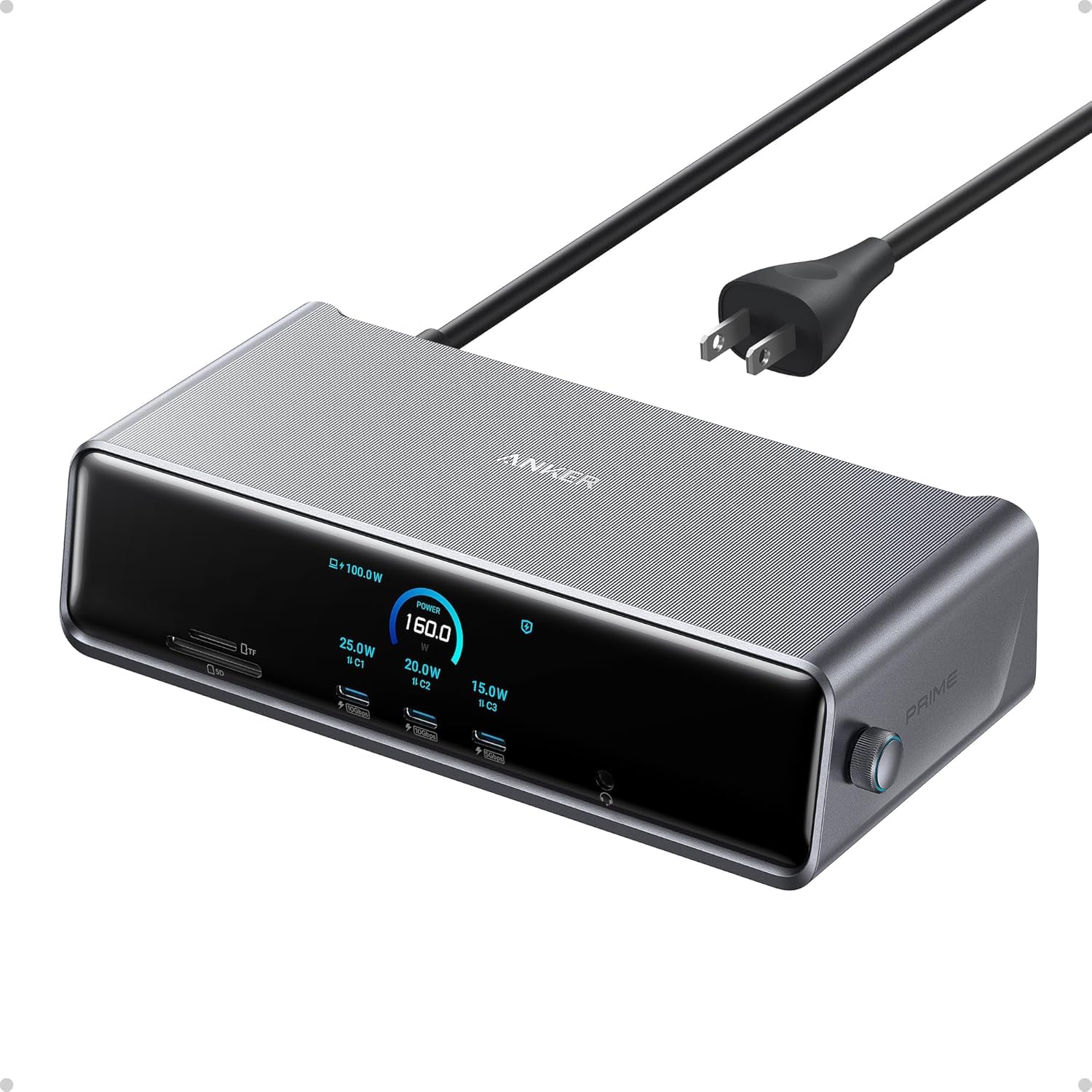
The Anker Prime DL7400 delivers triple 4K@60Hz output on Windows laptops via DisplayLink, combined with 140W power delivery and a smart display for real-time monitoring. This makes it a capable choice for professionals who require maximum screen real estate and fast charging from a single cable. However, the reliance on a third-party DisplayLink driver introduces compromises: protected content on streaming services may show a black screen, and some users have experienced intermittent disconnects. The premium price further narrows its value proposition, placing it firmly in the niche category for those who absolutely need triple 4K and can accept the software limitations.

Bottom line: Only consider this dock if triple 4K@60Hz is a non-negotiable requirement and you are comfortable with DisplayLink's quirks; otherwise, a simpler dual-monitor hub offers better value and fewer headaches.

12

Anker Nano 8-in-1

Anker Nano 8-in-1

Windows dual HDMI

Our Score 9.0/10
Check Price

Worth Noting

  • Long-term stability under continuous heavy use is not yet confirmed
  • Mac users are limited to screen mirroring, preventing extended multi-monitor layouts
Ethernet
None
Data Speed
10Gbps all
Compatibility
USB-C, Windows, Chrome, Mac mirror
Video Outputs
2 HDMI, 4K@60Hz

The Anker Nano 8-in-1 packs dual HDMI 4K@60Hz output, 10Gbps USB ports, and 85W power delivery into a compact, budget-friendly dock. It covers the basics well for Windows laptops that support DisplayPort 1.4 + DSC. However, the absence of extensive long-term usage data means its durability under daily heavy use is not yet established. Mac users should note that extended desktop support is unavailable, with only mirroring supported. This makes it a candidate for early adopters and cost-conscious buyers who are prepared to test a new model, rather than a safe bet for mission-critical setups.

Bottom line: Best for early adopters and budget-focused users who value specs over proven track record; not recommended for those who need guaranteed long-term performance.

How to Choose

Video Outputs

The number and type of video ports directly determine how many monitors you can connect and at what resolution. Dual 4K@60Hz requires DisplayPort 1.4 with Display Stream Compression (DSC) or Thunderbolt 4/5. Many budget docks advertise 'dual 4K' but deliver only 30Hz or require specific hardware that may not be supported by your laptop.

For triple monitor setups, you need either a dock with three video outputs (HDMI/DP) and a host laptop that supports multi-stream transport (MST) or a DisplayLink dock that uses software to add extra displays. Mac users should note that USB-C docks only mirror displays unless using DisplayLink.

Power Delivery

Power Delivery ratings are typically 'up to' values. Expect a 15-20W overhead, so a 100W dock delivers about 85W to the laptop. This may not be enough for high-performance machines like gaming laptops or workstations, which can require 130W or more. Check your laptop's power adapter wattage before choosing a dock.

Some docks split power between multiple ports, reducing what reaches the laptop. Look for docks that dedicate a USB-C port to laptop charging, and avoid relying on pass-through charging for power-hungry models.

Data Transfer Speed

USB 3.2 Gen2 (10Gbps) is twice as fast as Gen1 (5Gbps) and makes a noticeable difference when transferring large files to external SSDs or backups. However, many budget docks only provide 5Gbps on most ports. If you frequently move large video files or work with external storage, prioritize docks with at least one 10Gbps port.

Data speed also affects the performance of USB peripherals like webcams and audio interfaces. Higher bandwidth reduces lag and drops. Consider your peripheral needs before settling for 5Gbps.

Ethernet

Gigabit Ethernet is standard on most modern docks and provides a stable, low-latency connection for video calls and large downloads. Some premium docks offer 2.5GbE, which is overkill for typical internet speeds but useful for local network transfers.

Ethernet reliability is generally better than Wi-Fi for constant connections. If your work depends on stable internet, a dock with a wired Ethernet port is a worthwhile upgrade.

Compatibility

This is the most overlooked spec. Your laptop must support USB-C with DisplayPort Alt Mode or Thunderbolt for video output. Without it, only charging and data will work. Intel-based and AMD laptops often support DP Alt Mode, but some budget laptops lack it. Thunderbolt 3/4/5 docks work only with compatible ports.

Mac users face an additional limitation: USB-C docks can only mirror the built-in display. For extended multi-monitors, you need a DisplayLink dock that uses a software driver. This adds complexity and may block protected streaming content.

Frequently Asked Questions