Computers & Accessories

8 Best 4K Monitor of 2026: Avoid HDR Hype, Get Real Brightness

Which 4K monitors deliver genuine HDR and reliability, not just marketing promises? This guide cuts through the hype for productivity and gaming.

Many 4K monitors advertise HDR10 but lack the brightness to make a visible difference. A 250-nit panel can't deliver the contrast that the logo implies, leaving you with a dim, washed-out image. The real challenge is finding a monitor that pairs sharp resolution with enough luminance and a stable stand.

Budget models often cut corners on build quality and reliability. A wobbly stand or a unit that fails after a few months turns a good deal into a frustrating expense. The same applies to connectivity: USB-C with power delivery is convenient, but some ports develop faults over time.

This guide highlights monitors that balance price, picture quality, and durability. We focused on real-world performance and common pitfalls, so you can pick a 4K screen that actually works for your setup, not just your budget.

1

Dell 27 Plus S2725QS

Top Pick
Dell 27 Plus S2725QS

Productivity & casual gaming

Our Score 8.8/10
Check Price

Worth Noting

  • Mac users cannot adjust volume directly from the monitor; use system or external controls.
Ergonomics
Height, tilt, swivel, pivot
Panel Type
IPS
Color Gamut
99% sRGB
Connectivity
2x HDMI, DisplayPort

The 27-inch IPS panel at 4K resolution delivers crisp text and rich colors right out of the box. The 120Hz refresh rate is a meaningful upgrade from typical 60Hz office monitors — scrolling webpages and moving windows feel fluid without any noticeable ghosting.

Dell includes a fully adjustable stand that allows height, tilt, swivel, and pivot adjustments, so you can set the screen at eye level without buying extra hardware. The built-in speakers handle casual listening and video calls with acceptable clarity, though they lack bass for immersive audio. Two HDMI inputs and one DisplayPort give you flexibility to connect a PC and a game console simultaneously.

At its price point, this monitor undercuts many 4K 120Hz rivals while offering a more complete package — a sturdy stand, decent speakers, and an IPS panel. It doesn’t include USB-C or a KVM switch like some Dell UltraSharp models, but for users who don’t need single-cable laptop charging, the savings are welcome.

This Dell is a solid match for anyone wanting a large, sharp display for daily productivity and light gaming. Mac users should be aware that the monitor’s volume controls are not functional on macOS; you’ll need to adjust sound through the system or external speakers. Professional color work is better served by a wider-gamut display, but for general use the sRGB coverage is more than adequate.

Tip: If using with a Mac, plan to control volume through macOS or external speakers — no monitor-side control available.

Bottom line: For anyone seeking a 4K monitor that balances image quality, motion smoothness, and ergonomics without breaking the bank, this Dell handles daily productivity and casual gaming with room to spare.

2

LG 27UP850K-W

LG 27UP850K-W

MacBook, productivity, light creative

Our Score 9.0/10
Check Price

Worth Noting

  • Built-in speakers deliver thin, tinny sound; external audio is recommended.
  • USB-A ports may feel loose over time, affecting connection stability.
Ergonomics
Height, tilt, pivot
Panel Type
IPS
Color Gamut
95% DCI-P3
Connectivity
USB-C 90W, HDMI, DP

The LG 27UP850K-W delivers a sharp 27-inch 4K IPS display with 95% DCI-P3 color and 400 nits brightness, paired with a USB-C port that supplies 90W power delivery. For MacBook users, this means a single cable handles video, data, and charging - simplifying a desktop setup.

This monitor suits Mac users focused on productivity or light creative work who want color accuracy without stepping up to a dedicated studio display. The built-in speakers produce thin audio, so plan for external speakers or headphones to avoid disappointing sound.

The adjustable stand offers height, tilt, and pivot for comfortable positioning. Over time, some USB-A ports may feel slightly loose when connecting devices - a minor hit to convenience that doesn't affect the core display experience.

Tip: Plan for external speakers or headphones to compensate for the built-in audio.

Bottom line: For MacBook users seeking single-cable 4K productivity with good color, the LG 27UP850K-W offers strong value - just add your own speakers.

3

Dell UltraSharp U2723QE

Dell UltraSharp U2723QE

Professional, home office hub

Our Score 8.8/10
Check Price

Worth Noting

  • In a dark room with dim content, IPS glow can be visible
  • DisplayPort connection can drop out over time, and the screen may not wake from sleep on some units.
Ergonomics
Height, tilt, swivel, pivot
Panel Type
IPS Black
Color Gamut
100% sRGB
Connectivity
USB-C 90W, Ethernet, KVM

The U2723QE sets itself apart from typical 4K monitors by integrating a full KVM switch, Ethernet port, and USB-C with 90W power delivery — turning the monitor into a central workstation hub. The IPS Black panel delivers deeper blacks and wider viewing angles than standard IPS, covering 100% sRGB with factory-calibrated accuracy. Dell backs it with a three-year warranty, adding peace of mind for professional use.

This monitor is built for professionals managing two computers — the built-in KVM lets you control both with a single keyboard and mouse, while the Ethernet port keeps a wired network connection active. The USB-C port charges a laptop at 90W, reducing desk clutter. Some units exhibit backlight bleed in dark scenes, and there are occasional DisplayPort wake issues — these are worth checking if you rely on the monitor for critical work. Gamers seeking higher refresh should look to the S2725QS instead, but for productivity and accurate color, the U2723QE delivers.

The four USB-A ports on the rear keep peripherals connected, and the upstream USB-C and DisplayPort inputs allow quick switching. The 60Hz refresh is fine for office tasks and even casual gaming, though competitive players will notice lower motion clarity.

Tip: Check for backlight bleed early in your return window if you often work in dim lighting.

Bottom line: Best suited for professionals managing multiple devices who value wired networking and color accuracy over high refresh rates.

4

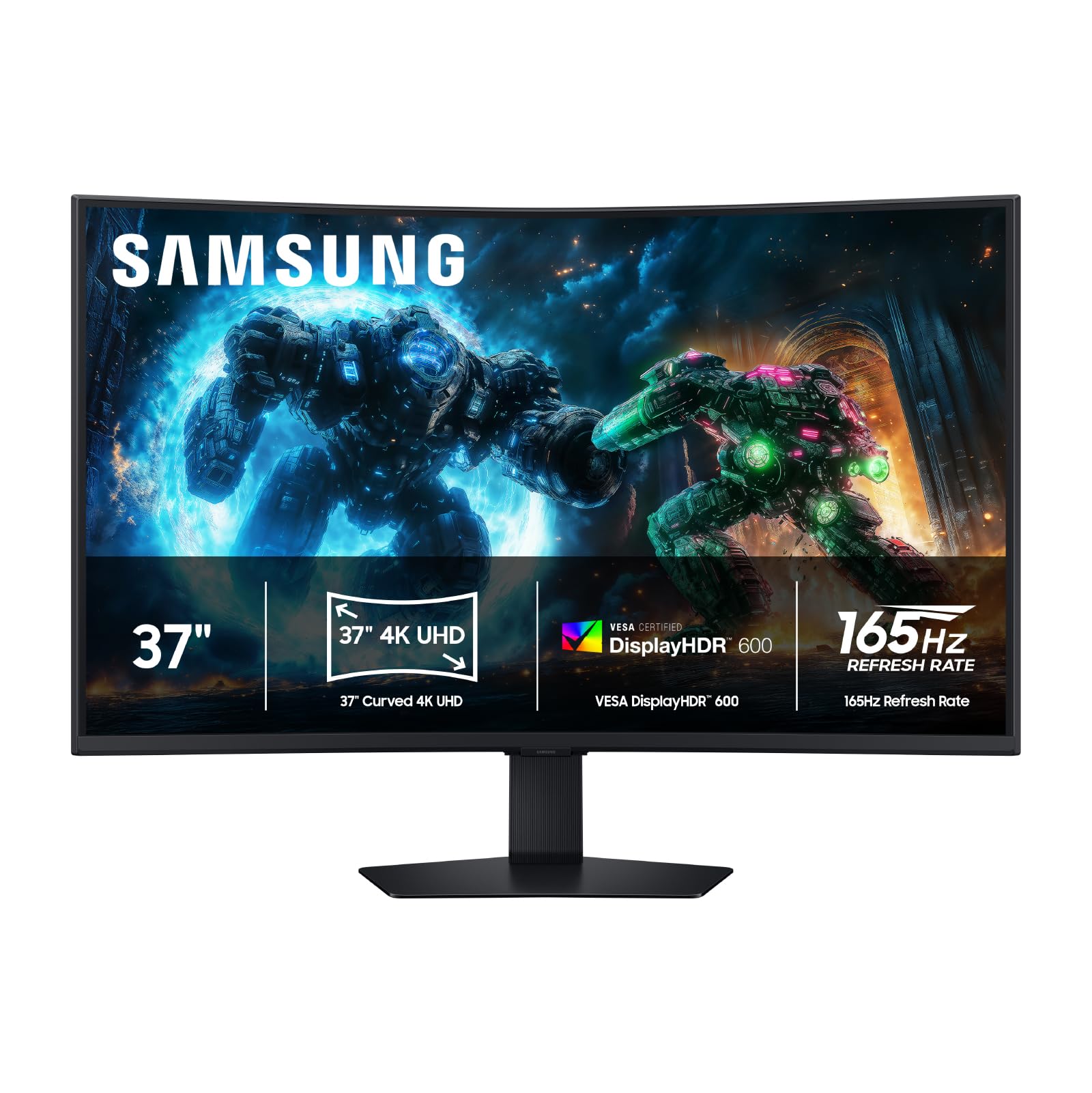
Samsung Odyssey G7 37"

Samsung Odyssey G7 37"

Immersive gaming

Our Score 9.0/10
Check Price

Worth Noting

  • No built-in speakers require external audio solution
  • Large size and aggressive curve need ample desk space and may not suit windowed workflows
Ergonomics
Panel Type
VA (curved 1000R)
Color Gamut
99% sRGB
Connectivity
2x HDMI, DP, USB hub

The 37-inch 1000R curve and 165Hz refresh rate define this monitor’s purpose: wrapping cinematic visuals around your field of view. The VA panel delivers vibrant colors and deep blacks that make games and movies feel enveloping, especially with DisplayHDR 600 support. That same aggressive curve and large footprint set it apart from a typical flat productivity monitor — this is built for a single deep-dive session, not a multi-monitor spreadsheet layout.

The lack of built-in speakers means you’ll need external audio — a common omission in gaming monitors, but one that adds to the desk setup cost. The 37-inch size and 1000R curvature also demand careful desk planning; the monitor extends nearly three feet wide, and the curve can make side-by-side windowed work feel distorted.

This monitor suits shoppers who want a dedicated gaming or media centerpiece and have the real estate to accommodate it. If you need a flat panel for productivity, multiple monitors, or integrated speakers, the slimmer 27-inch options in this roundup will serve better. The tradeoff is straightforward: immersive single-player immersion over all-purpose flexibility.

Tip: Measure your desk depth and clearance before purchasing — the 1000R curve is immersive but pushes the screen close to the user.

Bottom line: The right monitor if you want a cinematic gaming display and can dedicate desk space and external speakers to it.

5

ASUS ProArt PA279CRV

ASUS ProArt PA279CRV

Photo/video editing

Our Score 8.6/10
Check Price

Worth Noting

  • 60Hz refresh rate limits gaming smoothness; suited for productivity and creative work
  • 400-nit peak brightness insufficient for impactful HDR content
Ergonomics
Height, tilt, swivel, pivot
Panel Type
IPS
Color Gamut
99% DCI-P3, Adobe RGB
Connectivity
USB-C 96W, HDMI, DP

The ASUS ProArt PA279CRV delivers factory-calibrated color accuracy covering 99% of both DCI-P3 and Adobe RGB with a Delta E under 2 — performance that typically requires a display costing hundreds more. Calman Verification certifies the out-of-box precision, saving time on manual calibration. The 27-inch 4K IPS panel and USB-C port with 96W power delivery allow for a clutter-free single-cable laptop connection, while the built-in USB hub connects peripherals. Creative professionals will find the color consistency ideal for editing print and digital media without additional hardware.

This monitor targets photo editors, graphic designers, and content creators who rely on accurate color reproduction. The ergonomic stand offers height, tilt, swivel, and pivot adjustments, and the sturdy build supports extended use. However, panel quality can vary — some units may exhibit dead pixels, backlight bleed, or color tint. Inspecting the display upon arrival is essential. Those who cannot tolerate any panel variation should consider a monitor from a brand with tighter quality control.

The 27-inch UHD resolution delivers sharp detail for fine editing work. The solid construction and stable stand keep the monitor securely in place during long sessions. While this monitor is not designed for HDR or high-refresh gaming, its 60Hz refresh rate is perfectly adequate for productivity and content creation. At a mid-range price, the PA279CRV offers color accuracy that competes with pricier options, provided the unit is free of defects.

Tip: Test for dead pixels and backlight uniformity within the return window.

Bottom line: A color-accurate monitor for creative professionals who inspect their panel on arrival; skip if you need HDR or high refresh.

6

Samsung ViewFinity S8

Samsung ViewFinity S8

Office productivity

Our Score 9.2/10
Check Price

Worth Noting

  • No USB-C connectivity
  • Some units may ship with a non-adjustable height stand due to packaging confusion
Ergonomics
Height, tilt, swivel, pivot
Panel Type
IPS
Color Gamut
sRGB
Connectivity
HDMI, DP, USB-A hub

The Samsung ViewFinity S8 delivers sharp 4K text and a fully adjustable stand right out of the box – height, tilt, swivel, and pivot – making it easy to set up for daily productivity on Windows. The IPS panel offers good contrast and bright whites at 350 nits. However, the lack of USB-C means you cannot charge a modern laptop or transfer data with a single cable; only HDMI and DisplayPort are available. Additionally, some units may arrive with a non-adjustable height stand due to packaging confusion, so it is worth inspecting upon delivery. For users who need USB-C connectivity, this monitor is better suited as a secondary display or for a desktop PC that relies on DisplayPort.

Tip: Verify the height adjustment lever is present during setup – some units may not include it due to packaging variation.

Bottom line: Best for Windows desktop users who want a simple, adjustable 4K monitor and do not need USB-C charging or data passthrough.

7

ASUS ROG Swift PG32UCDP

ASUS ROG Swift PG32UCDP

Enthusiast gaming

Our Score 8.6/10
Check Price

Worth Noting

  • Flickering may become noticeable within the first few weeks of ownership.
  • Text fringing from the OLED subpixel layout makes reading small fonts less sharp.
Ergonomics
Panel Type
WOLED
Color Gamut
99% DCI-P3
Connectivity
USB-C 90W, HDMI, DP

The ROG Swift PG32UCDP delivers the best motion clarity we have seen in a 32-inch 4K panel. The WOLED display produces inky blacks and vivid colors that make games pop, and the dual-mode refresh rate lets you switch to 480Hz at 1080p for ultra-smooth competitive play. Input lag is virtually non-existent at 0.03ms. However, this monitor is not built for general productivity or color-critical work: the subpixel layout causes noticeable text fringing on white backgrounds, and typical brightness of 275 nits feels dim in a well-lit room. More critically, flickering can appear within weeks of normal use — a known variation that some owners experience and others do not. At this premium price, the trade-off between jaw-dropping gaming performance and uncertain reliability makes it a gamble best taken by those who prioritize speed above all else.

Bottom line: For the pure gamer who values instantaneous motion and can accept possible display quirks, this is the fastest 32-inch 4K screen available. Avoid if you need a reliable daily driver for productivity or color-accurate work.

8

LG 27US500-W

LG 27US500-W

Extreme budget

Our Score 9.0/10
Check Price

Worth Noting

  • Stand is wobbly; a VESA arm is needed for stable placement
  • Some units may develop screen blackouts or stop functioning within months
Ergonomics
Tilt only
Panel Type
IPS
Color Gamut
sRGB
Connectivity
2x HDMI, DisplayPort

This LG monitor delivers a sharp 4K IPS image at a price that undercuts most competitors, making it an attractive option for budget-conscious buyers. The borderless design and simple setup add to its appeal. However, the stand is unstable enough that a VESA arm is practically required for daily use, and some units may experience screen blackouts or stop functioning within months. These limitations prevent it from being a top recommendation; it is best suited as a secondary display or for users who can provide their own mounting solution.

Bottom line: For budget-minded shoppers who plan to use a VESA arm and accept occasional unit variance, this LG is the most affordable way to get a 27-inch 4K IPS display as a secondary monitor.

How to Choose

Panel Type

IPS panels offer wide viewing angles and consistent color, making them ideal for productivity and creative work. VA panels provide deeper blacks and better contrast, but viewing angles narrow off-center.

OLED delivers infinite contrast and vibrant colors but has lower brightness and potential burn-in. For general use, IPS hits the best balance of color and reliability.

Refresh Rate

60Hz is sufficient for office tasks and non-competitive gaming. A 120Hz or higher panel makes motion smoother for casual gaming and scrolling, but requires a GPU that can push 4K frames.

Higher refresh rates also introduce more heat and power draw. For pure productivity, 60Hz saves money and reduces GPU load.

Color Accuracy

Color gamut is often marketed as a large percentage, but real accuracy depends on factory calibration. sRGB coverage above 99% is fine for general use; DCI-P3 above 95% matters for photo and video editing.

A monitor with wide gamut but no calibration may appear oversaturated. Look for Delta E < 2 claims if color fidelity is critical.

Connectivity

USB-C with 90W power delivery charges a laptop and displays video over a single cable, reducing desk clutter. However, some models have USB-C ports that fail over time—check reviews for reliability.

An integrated USB hub and Ethernet port turn the monitor into a workstation dock, but add cost. For Mac users, USB-C is almost essential; Windows users can manage with HDMI and DisplayPort.

Ergonomic Adjustability

A wobbly or tilt-only stand forces you to prop the monitor with books or buy a VESA arm—an extra $30-50. Height adjustment and rotation make long work hours far more comfortable.

Budget monitors often skimp on the stand, so factor in the cost of a third-party arm if you plan to use it as a primary display.

Frequently Asked Questions