Computers & Accessories

9 Best Keyboard and Mouse Combo of 2026: Stay Connected Without the Lag

Find the keyboard and mouse combo that won't drop connection or fail within months — whether you need quiet typing, ergonomic support, or gaming RGB.

A wireless keyboard and mouse combo promises a clutter-free desk, but too many models develop lag, disconnects, or outright failure within the first year. That frustration is especially common with budget sets that cut corners on wireless hardware.

The key is choosing a combo that matches your use case — whether you need absolute silence for an open office, ergonomic wave keys for long typing sessions, or RGB for a gaming rig. The right one will serve you daily without surprises.

The sweet spot for most users sits in the $40–$60 range, where build quality and wireless stability meet.

1

Logitech MK955 Slim Combo

Top Pick
Logitech MK955 Slim Combo

Quiet, multi-device

Our Score 9.2/10
Check Price

Worth Noting

  • Some units may develop scroll wheel issues or stop responding within months
Battery Life
Connectivity
Bluetooth & Logi Bolt
Keyboard Feel
Membrane, slim laptop-style
Ergonomic Features

The MK955 delivers a noticeably quiet typing and clicking experience. The SilentTouch mouse eliminates the sharp click without making the button feel mushy, and the laptop-style membrane keys retain enough travel for comfortable all-day typing. The build feels solid, with a matte finish that resists fingerprints and a slight heft that keeps the keyboard planted on the desk.

Switching between a PC, Mac, and tablet is handled by a simple button press on the keyboard – no dongle swapping or re-pairing required. The contoured mouse and full-size keyboard layout accommodate larger hands well, reducing strain during long sessions. The SmartWheel on the mouse provides smooth scrolling that speeds up for long documents and clicks precisely for line-by-line work.

This combo is best suited for office workers, remote professionals, and anyone who juggles multiple computers in a shared or quiet workspace. The quiet operation is a genuine asset in open-plan offices or late-night work sessions. If you need low-latency response for gaming, the Bluetooth and Logi Bolt connection aren't designed for that, and budget buyers looking to spend under $50 should look elsewhere.

For the mid-range price, you get build quality that feels substantial, but a minority of units have experienced mouse failures within months – verifying the warranty before purchasing is a wise step. This doesn't affect the typing experience, and Logitech's support handles replacements, but it's a known edge case to be aware of.

Bottom line: For a quiet, comfortable productivity setup with multi-device convenience, the MK955 is a strong mid-range investment – just verify the warranty to cover the occasional mouse defect.

2

Logitech MK650 Business

Logitech MK650 Business

Secure quiet office

Our Score 8.8/10
Check Price

Worth Noting

  • In fast typing, the keyboard may occasionally miss strokes or repeat characters.
  • The mouse may feel cramped for users with larger hands during extended use.
Battery Life
36mo keyboard, 24mo mouse
Connectivity
Logi Bolt & Bluetooth
Keyboard Feel
Membrane, full-size
Ergonomic Features
Palm rest included

The MK650 Combo prioritizes enterprise-level wireless security through Logi Bolt encryption and a secure connection mode that blocks non-Bolt devices. This makes it a dependable choice for IT-managed environments where data protection matters, unlike the top pick's focus on multi-device convenience.

The keyboard delivers quiet membrane typing with a full-size layout and detachable palm rest, while the mouse's SmartWheel offers smooth scrolling. Build quality feels professional. However, during rapid typing the keyboard may occasionally miss a keystroke or repeat a character — an inconvenience that doesn't affect typical office pace.

This combo fits best in corporate settings where quiet operation and secure wireless are priorities over multi-device flexibility. Users with larger hands may find the mouse less comfortable, and the keyboard's responsiveness quirks make it less ideal for high-speed data entry. For most office workflows, these boundaries are manageable tradeoffs.

Bottom line: For IT teams deploying secure wireless peripherals across a fleet, the MK650 offers encryption and stability without the distractions of RGB or multi-device switching.

3

ULSOU Wireless Ergo

ULSOU Wireless Ergo

Ergonomic budget wireless

Our Score 8.4/10
Check Price

Worth Noting

  • In a daily-driver role, some units may stop registering keystrokes within months
  • When the receiver is behind metal or at a distance, occasional keystroke lag may occur.
Battery Life
Replaceable AA
Connectivity
2.4 GHz wireless
Keyboard Feel
Membrane, wave ergonomic
Ergonomic Features
Wave keyboard, wrist rest

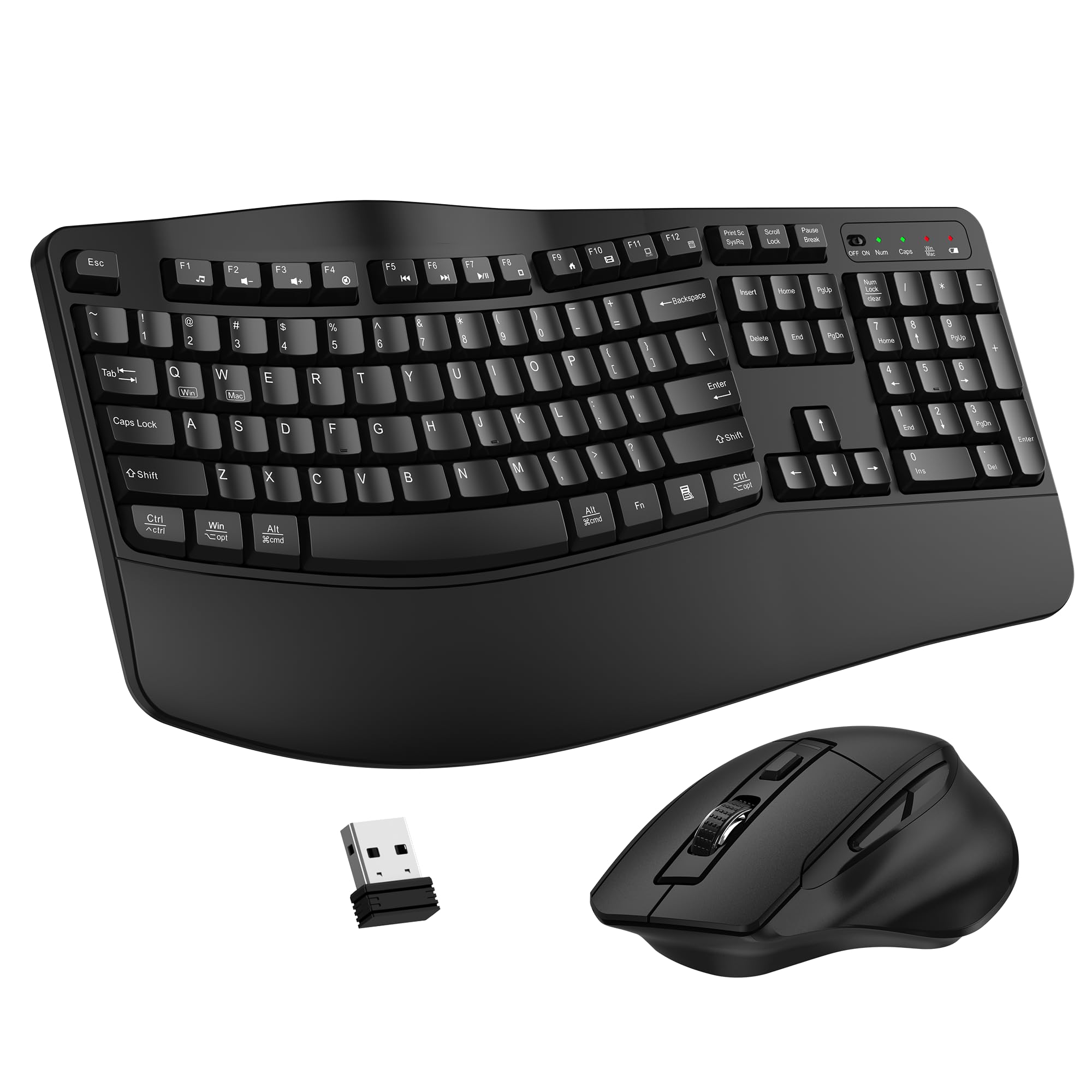
The ULSOU Wireless Ergo stands out as the most affordable wave-shaped keyboard combo with genuine ergonomic design. Its curved key layout and padded wrist rest provide noticeable palm support during long typing sessions — a feature usually found in pricier options. Unlike newer wave keyboards with no user history, this model has a solid base of feedback confirming its comfort.

This combo fits office workers and anyone dealing with wrist strain who wants ergonomic relief without spending over $40. The tradeoff is that some units have shown connectivity or key registration issues within months, and you'll need to supply your own AA batteries. For users willing to accept that variability, the day-to-day typing comfort is hard to beat at this price.

The keystrokes are quiet and smooth, and the mouse offers three DPI levels for cursor speed adjustment. The 2.4 GHz connection stays stable for most sessions, though occasional input lag has been noted when the receiver is placed behind metal or at a distance — something to check in your workspace layout.

Tip: This combo runs on AA batteries (not included) — keep spares on hand to avoid downtime when the auto-sleep wakes.

Bottom line: If you need ergonomic support on a tight budget and can accept some variability in long-term durability, the ULSOU Wireless Ergo offers genuine comfort that justifies its price.

4

Redragon S101-3 PRO

Redragon S101-3 PRO

Budget gaming RGB

Our Score 9.0/10
Check Price

Worth Noting

  • Plastic housing can show wear or LED dimness over time with regular use.
  • In a high-use scenario, the mouse laser or keyboard keys may stop responding after several months.
Battery Life
Connectivity
USB wired
Keyboard Feel
Membrane with mechanical feel
Ergonomic Features
Foam wrist rest

The Redragon S101-3 PRO packs software-controlled RGB effects and independent macro recording into a wired set that costs less than most standalone keyboards. Compared to the no-frills wired alternative, this combo adds multiple lighting modes and customizable keys without raising the price.

This set suits first-time PC builders, teens, or casual gamers who want flashy visuals and macro shortcuts for occasional use. The membrane key feel won't mimic mechanical switches, and unit-to-unit durability can vary – some owners note keyboard or mouse issues within the first year, so it's best treated as an entry-level or backup option rather than a long-term daily driver.

The included foam wrist rest and soft key travel make extended typing or gaming sessions comfortable enough for light workloads. RGB brightness is solid for the price, with several preset effects that add a gaming look to any desk.

Bottom line: A feature-heavy starter combo that delivers on RGB and macros, but durability is a gamble – best for those who accept it as a temporary or backup kit.

5

RedThunder K10 Wired

RedThunder K10 Wired

Wired gaming value

Our Score 9.0/10
Check Price

Worth Noting

  • Backlight illumination can appear dim in bright rooms, reducing key label visibility.
  • Spacebar and certain keys can produce squeaky or loud sounds compared to typical membrane keyboards.
  • Key or mouse responsiveness can become inconsistent over time in some units.
Battery Life
Connectivity
USB wired
Keyboard Feel
Membrane with mechanical feel
Ergonomic Features
Memory foam wrist rest

The RedThunder K10 wired gaming combo pairs an anti-ghosting keyboard with a 7200 DPI mouse and a memory foam wrist rest, delivering responsive input and comfortable support at a budget-friendly price. Where the top pick for quiet productivity goes wireless and silent, this set prioritizes low-cost gaming features and wired reliability.

This setup suits budget-conscious gamers and casual users who want RGB lighting and wired stability without a large investment. The backlight may appear dim in well-lit rooms, and some units can experience key or mouse responsiveness issues within months — a consideration for those expecting years of daily use.

The membrane keys offer a mechanical-like bump, but the spacebar and a few other keys can produce squeaky or louder-than-expected sounds — something to note for shared spaces. Overall, the combination of anti-ghosting, adjustable DPI, and a padded wrist rest keeps the focus on gaming basics.

Tip: Place the setup in a dimmer room or use the RGB backlight as ambient lighting to better see key labels.

Bottom line: For budget gamers who prefer wired reliability and don't mind dimmer backlighting, this combo offers strong value — just keep expectations realistic about long-term durability.

6

MSI Vigor GK30 White

MSI Vigor GK30 White

White PC gaming

Our Score 9.0/10
Check Price

Worth Noting

  • Keycaps may pop off or mouse buttons can develop issues over time in some units
  • Membrane keys feel mushy compared to true mechanical switches, lacking crisp feedback
  • Mouse is compact and may be uncomfortable for users with larger hands
Battery Life
Connectivity
USB wired
Keyboard Feel
Membrane with mechanical feel
Ergonomic Features

The MSI Vigor GK30 Combo stands out with its clean white finish and 6-zone RGB lighting, creating a cohesive look for white-themed PC builds. The splash-proof membrane keyboard adds practical peace of mind for desk spills, while the bundled GM11 mouse offers up to 5000 DPI in a compact shell.

This combo suits buyers building an all-white setup who want RGB customization and basic water resistance without spending much. The mouse is notably small, which may be uncomfortable for larger hands, and the membrane keys deliver a soft, quiet actuation rather than the crisp feedback of a mechanical board.

Build quality feels solid for a membrane kit, and the Mystic Light software provides decent RGB control. The value is fair given the splash resistance and included peripherals, though the key feel and mouse size prevent it from doubling as a daily productivity workhorse.

Tip: Pair the keyboard with a separate full-sized mouse if you have larger hands.

Bottom line: If you are building a white-themed setup and can accept a compact mouse and membrane keys, this combo delivers a cohesive look and splash protection at a mid-range price.

7

Logitech MX Keys S Combo

Logitech MX Keys S Combo

Premium quiet multi-device

Our Score 9.2/10
Check Price

Worth Noting

  • Mouse cursor can lag during rapid movements, noticeable in multitasking workflows
  • Left mouse button has been noted to lose click registration after months of heavy daily use
Battery Life
Rechargeable USB-C
Connectivity
Bluetooth & Logi Bolt
Keyboard Feel
Membrane, low-profile
Ergonomic Features
Palm rest included

The MX Keys S Combo offers a truly premium typing feel with smart backlighting that adjusts to ambient light, plus a battery that lasts weeks between USB-C charges. The keyboard is solid and quiet, making it a pleasure for long typing sessions. However, the mouse can lag in fast-paced use, and the left click may lose responsiveness over time under heavy daily wear. Its high price also positions it as a luxury choice — best suited for professionals who value keyboard refinement and can accept the mouse's quirks, rather than as a general-purpose daily driver.

Bottom line: Ideal for typing-focused professionals in a quiet office who prioritize keyboard feel over mouse precision and have the budget for a premium set.

8

Dell KM7321W

Dell KM7321W

Dell multi-device

Our Score 8.8/10
Check Price

Worth Noting

Battery Life
3 AA included
Connectivity
Bluetooth 5.0 & 2.4 GHz
Keyboard Feel
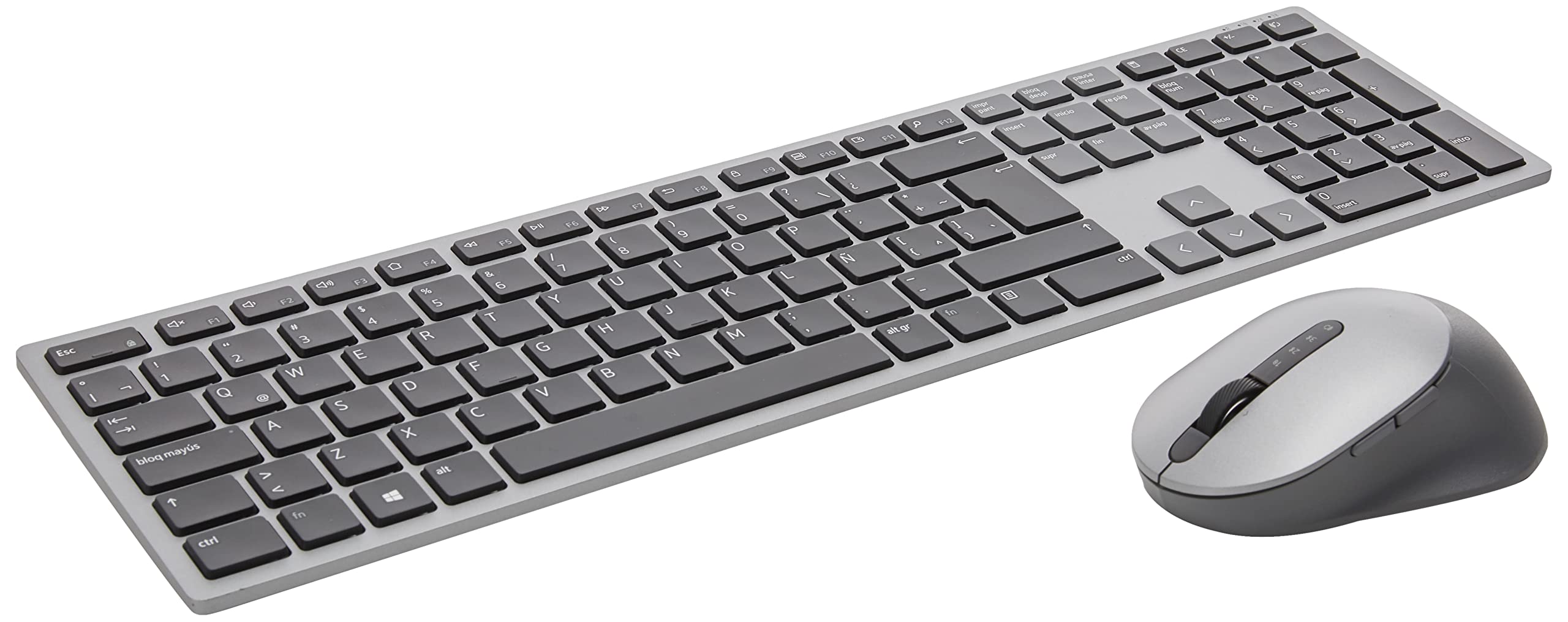
Membrane full-size
Ergonomic Features
12 programmable keys

The Dell KM7321W delivers a clean multi-device experience with up to three connections via Bluetooth 5.0 or 2.4 GHz. Its full-size keyboard offers 12 programmable keys that streamline repetitive tasks, and the build quality feels premium for the mid-range price. However, with a smaller body of user feedback compared to the top pick, long-term durability under heavy daily use is less confirmed. This makes the KM7321W a better fit for Dell ecosystem loyalists or those who prioritize immediate feel and features over a longer track record.

Bottom line: Best for Dell loyalists who want programmable shortcuts and brand consistency, but anyone needing a well-documented daily driver should look to the top pick.

9

Logitech MK270 Combo

Logitech MK270 Combo

Budget wireless basic

Our Score 9.0/10
Check Price

Worth Noting

  • Keyboard or mouse may stop responding after several months of use
  • Wireless range can be limited, with connection drops at distances beyond a few feet
Battery Life
36mo keyboard, 12mo mouse
Connectivity
2.4 GHz wireless
Keyboard Feel
Membrane
Ergonomic Features

The MK270 is the cheapest wireless combo available, offering basic typing and cursor control at a rock-bottom price. Setup is plug-and-play with the included USB receiver. For occasional use at a secondary desk or as a travel backup, it delivers what you need. However, the wireless connection can lose signal at short range, and keystrokes may occasionally be missed. The keyboard or mouse may also become unresponsive after several months. These limitations make it a poor choice for daily productivity but a reasonable stopgap for low-stakes tasks.

Bottom line: Fits best as a spare set for guest computers or temporary workstations where the low cost is more important than long-term reliability.

How to Choose

Connectivity Type

Wired connections (USB) offer the lowest latency and zero interference risk, making them ideal for competitive gaming or environments where wireless signals are congested. However, they tether you to the desk and can create cable clutter.

Wireless options split into 2.4 GHz (more stable, dedicated dongle) and Bluetooth (convenient for multi-device but prone to interference). 2.4 GHz wireless typically maintains a stable link within 30 feet, while Bluetooth can suffer dropouts when the host device is placed under a metal desk or behind obstacles.

For most office and casual use, a 2.4 GHz wireless combo with a unified dongle provides the best balance of freedom and reliability. Bluetooth is only worth it if you regularly switch between a laptop, tablet, and desktop.

Keyboard Feel

Membrane keyboards are the most common in combos under $100. They use a rubber dome under each key, which provides a soft, quiet press but lacks the tactile feedback of mechanical switches. Over time, the membrane can degrade, leading to mushy or inconsistent keystrokes.

Mechanical keyboards offer distinct switch types (clicky, tactile, linear) and longer durability (50 million+ keystrokes vs. 5-10 million for membrane). But they are louder, heavier, and more expensive. Many budget gaming combos advertise 'mechanical feel' — this is still membrane with a clicky mechanism, not true mechanical switches.

If you type all day for work, a quality membrane (like Logitech's Perfect Stroke keys) can be just as comfortable as a mechanical board, provided it has good key stability. For gaming, true mechanical is preferable for precise inputs, but membrane with anti-ghosting is adequate for casual play.

Noise Level

Noise is a hidden trade-off in shared spaces. 'Silent' or 'quiet' keyboards use dampened membrane domes or scissor-switch mechanisms that reduce clatter by 50-70% compared to standard membrane boards. However, even quiet models produce an audible click on bottom-out; the difference is in pitch and dampening.

Budget 'gaming' combos often use clicky actuators inside membrane switches to simulate mechanical feel, which creates a sharp clack that can annoy coworkers. If silence is critical, look for combos explicitly labeled 'SilentTouch' or with foam rings under keycaps.

The mouse click noise is equally important — many budget mice produce a loud, hollow click. Premium models like the Logitech M750 use dampened switches that reduce noise by 90%.

Battery Life

Wireless combos typically use either replaceable AA/AAA batteries or built-in rechargeable cells. Replaceable batteries offer the convenience of instant replacement but add long-term cost. Rechargeable combos (USB-C) eliminate battery waste but degrade after 500+ cycles and require remembering to charge.

Battery life varies wildly: budget combos often claim 2-3 years for the keyboard and 12-18 months for the mouse, but real-world usage (especially with backlighting) can cut that by half. Premium combos like the MX Keys S last weeks with backlight on, months with it off.

For daily office use, a combo with replaceable batteries that last 12+ months per set is more practical than a rechargeable that needs weekly charging. If you use backlighting, expect to charge every 2-3 weeks.

Ergonomic Features

Palm rests reduce wrist extension strain by supporting the base of the palm. Built-in rests (like on the MK650) are convenient, while detachable rests allow cleaning or removal when not needed. Memory foam with leatherette covering is more durable than basic foam.

Wave or curved keyboards (e.g., ULSOU) angle the key rows to follow the natural hand position. This can reduce pronation strain, but the learning curve is real — expect a few days of adjustment. For occasional typists, a standard flat layout with a good palm rest may be sufficient.

Mouse shape is often overlooked: ambidextrous mice tend to be small and less supportive for larger hands. Contoured right-handed mice with thumb supports (like the M550) reduce grip fatigue. If you have large hands, avoid ambidextrous designs.

Frequently Asked Questions